Session Check-In and Certificates of Attendance
Room codes, staff scans and signed certificates
November 14, 2026
By The Confi Team
Session check-in and certificates both live on the Attendance & Certificates page in the admin portal, under Attendee management. The page has two tabs, Attendance and Certificates, and they share the same attendee list. Tracking attendance is optional: certificates for every attendee work without it.
For why session attendance matters and how it compares to sign-in sheets and badge scanners, read event attendance tracking.
Choose How Attendance Is Tracked
Under How attendance is tracked, pick how attendees check in.
Staff scan only. Staff scan each attendee’s QR code at the door, and attendees can’t mark attendance themselves. Pick this when your accrediting body wants every attendance confirmed by a person.
Room code + staff scans. Attendees scan the code on a screen in the room, and staff scan anyone without the app. This needs the fewest people on the day.

Put a Room Screen in Each Room
With room codes, each room needs a screen that shows its code. Under Room screens, click New Screen Link and name it after the device, for example “Main hall projector”. Open the link on any projector, TV, tablet, laptop or phone. It needs no sign-in.
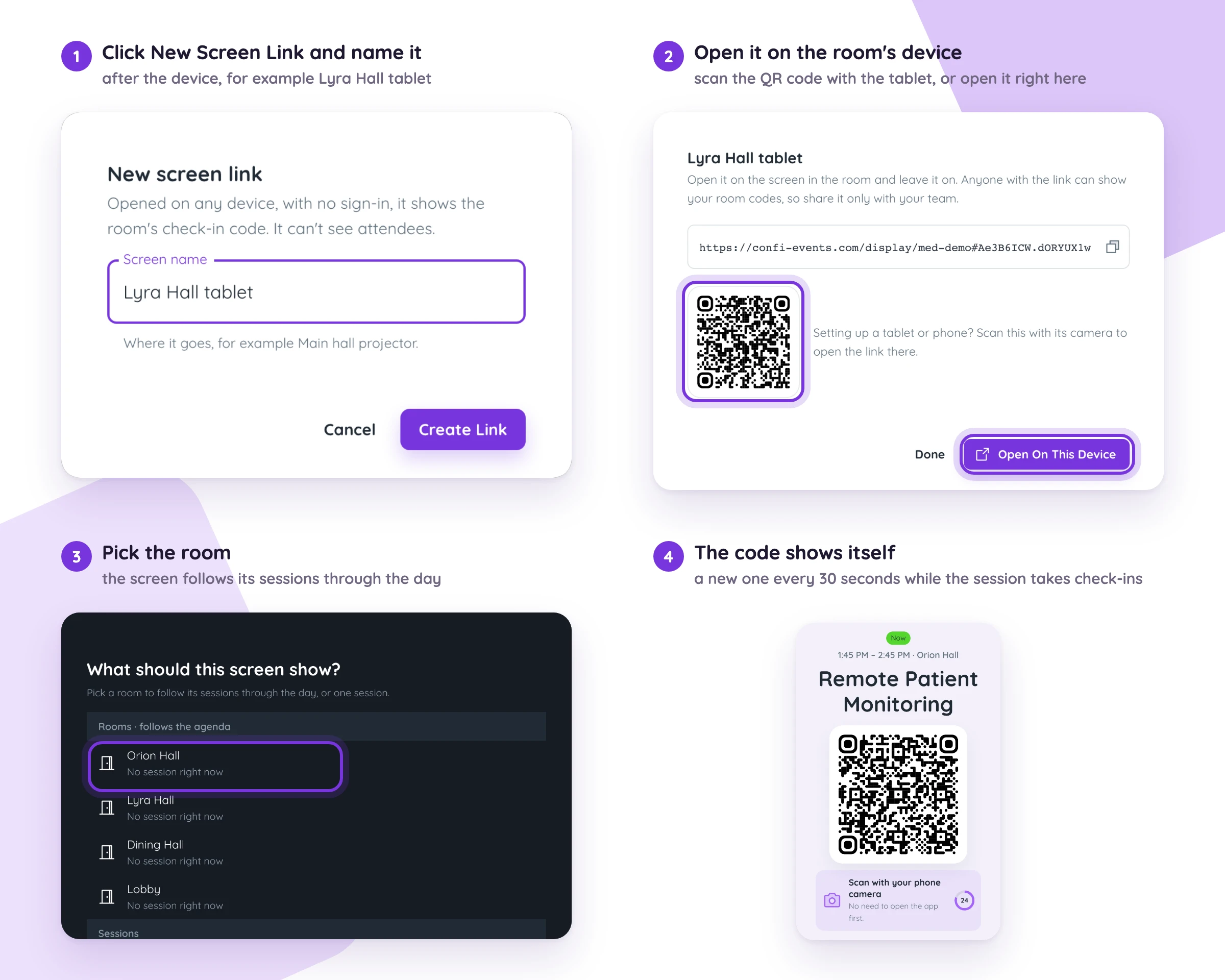
Pick a room on the screen and it follows that room’s sessions by time, or pick a single session.
The code changes every 30 seconds and works from 15 minutes before a session starts until 5 minutes after it ends.
Back-to-back sessions: the screen switches to the next session’s code 15 minutes before it starts, so people arriving early check in to the session they came for. A short session keeps its code until halfway through.
Breaks show what comes up next, without a code.
A screen link only shows codes, never attendees or how many checked in. Deleting the link stops its codes at once.
If you open the link on a device where you are signed in to the admin portal, the screen reminds you to sign out before leaving it in the room. The screen keeps working after you do.
Scan Attendees at the Door
Staff scanning covers guests without the app, and everyone when you chose Staff scan only. Whoever scans needs editor access to the event, added under Editors. Open the room’s scanner under Staff scanning, or click the scan icon on a session’s row, and scan the attendee’s My QR code or the QR code on their ticket email.
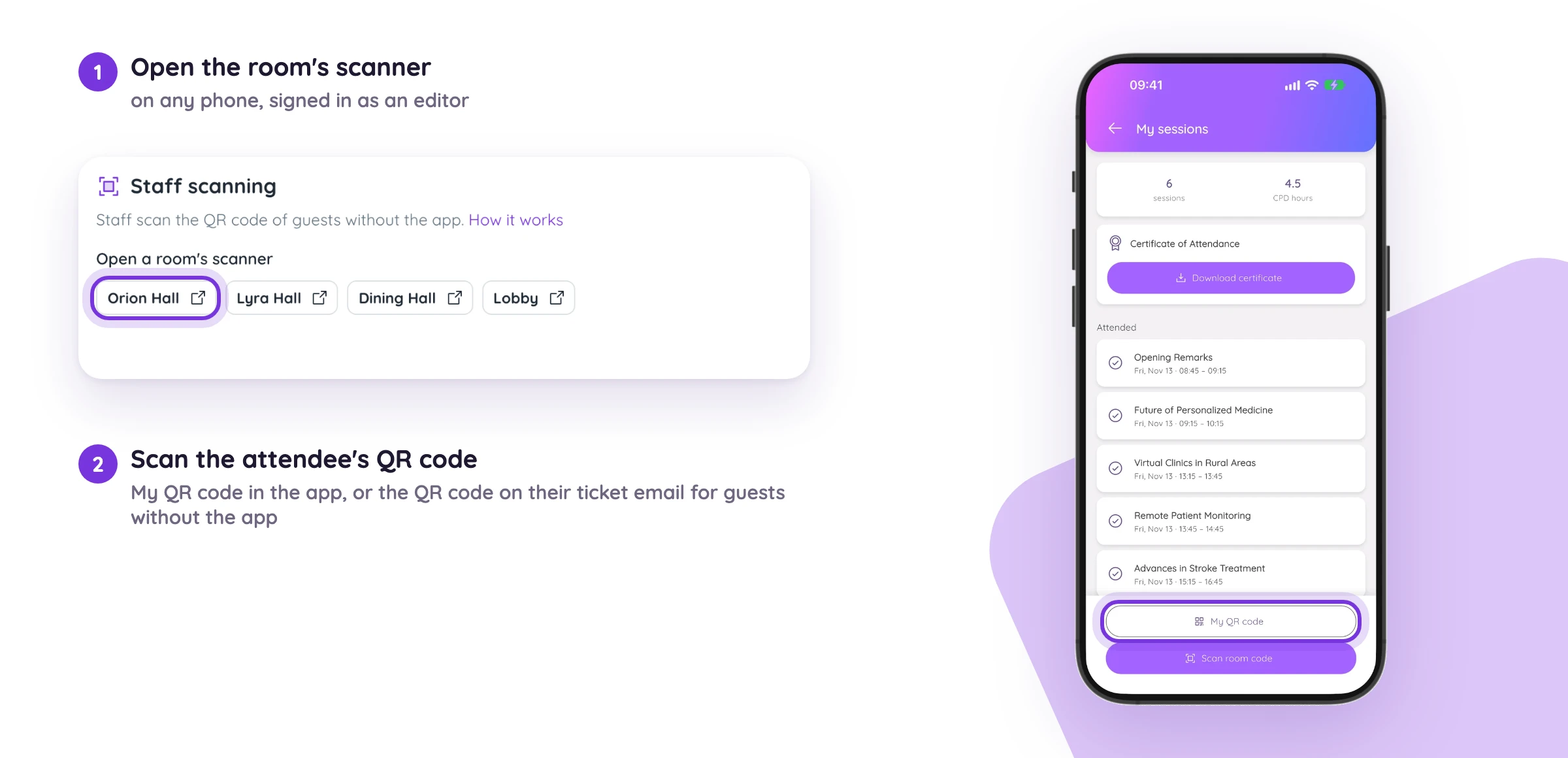
The scanner tells you if someone shows the wrong code: “That’s the room’s code. Scan the attendee’s own QR code.” or “This QR code is for a different event.”
Choose Which Sessions Take Check-Ins
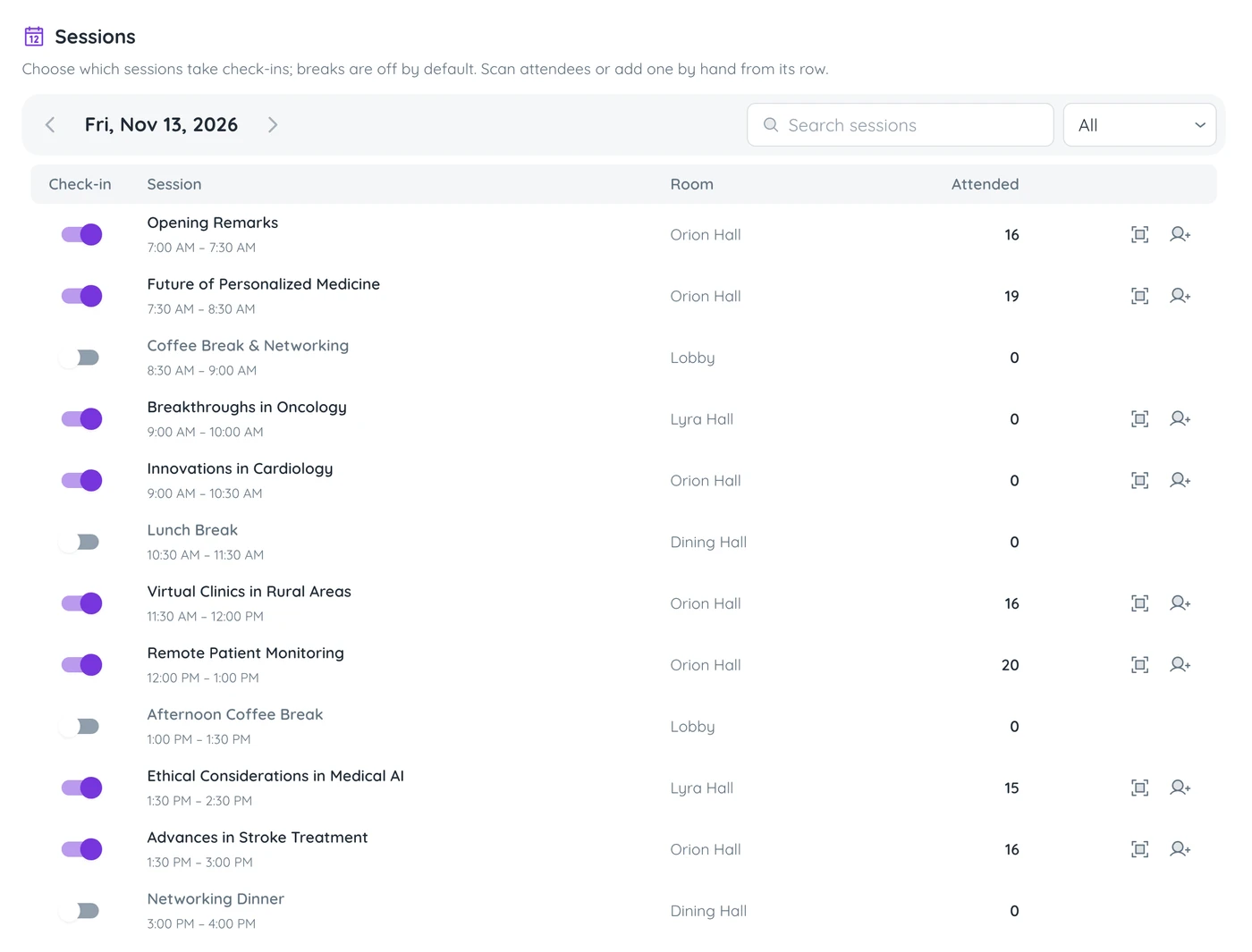
The Sessions table lists every agenda item with the number who attended. Every session takes check-ins by default, except breaks such as coffee, lunch or registration. Use the switch on a row to change it. Turning a session off stops new check-ins and keeps the ones already made.
What Attendees See
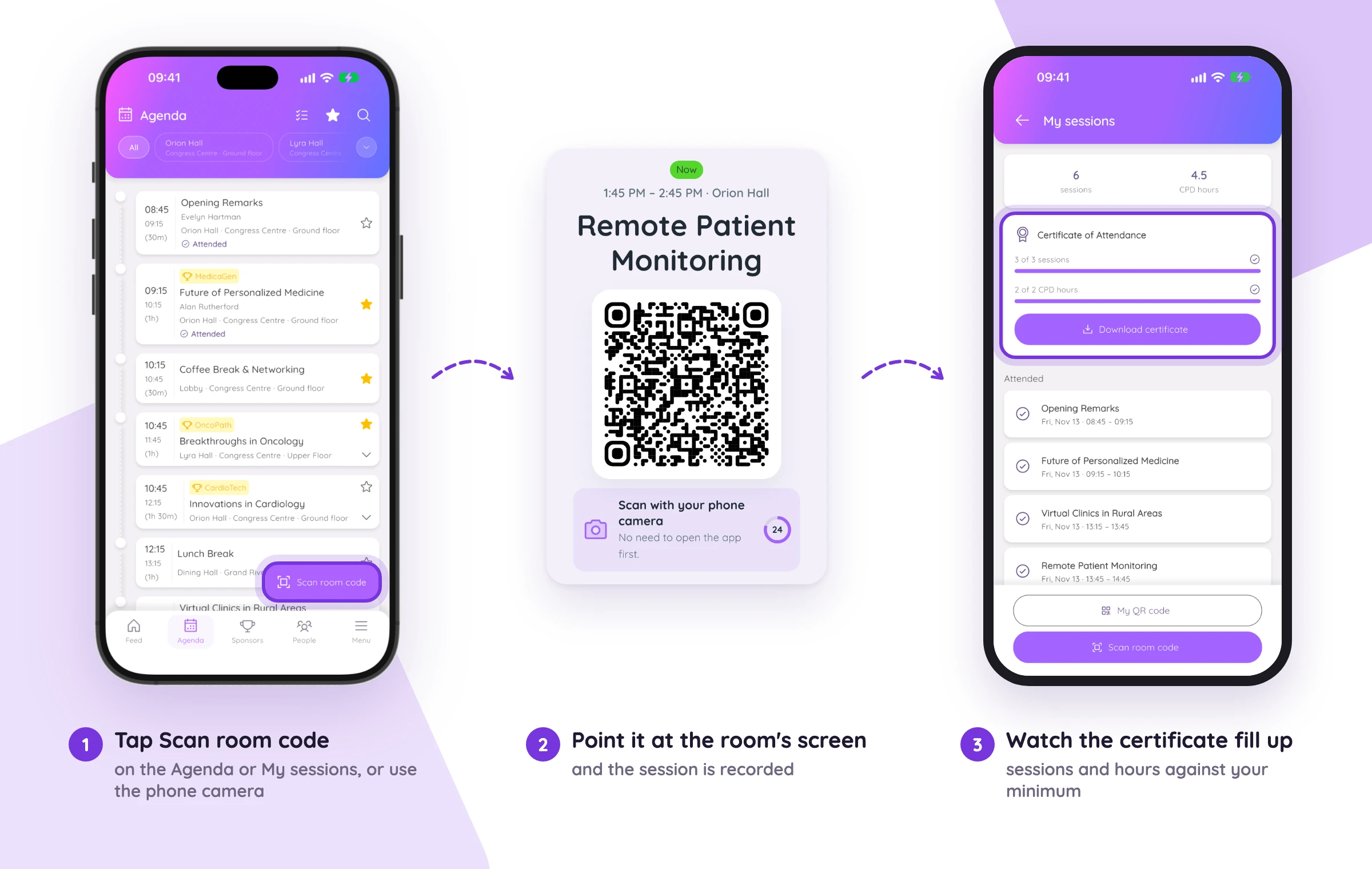
Attendees point their phone camera at the room code, or tap Scan room code on the Agenda or My sessions, and get a You’re in! confirmation. Someone who still had to sign in is checked in once they do, and if the code changed in the meantime, the app offers to scan it again.
Attended sessions are marked on the Agenda. My sessions, on the attendee’s Profile, lists them with the total hours, the certificate progress towards your minimum, and the certificate download once you issue them.
Fix Attendance by Hand
Someone’s phone died, or they sat at the back without scanning. Add their attendance from the session’s row in the Sessions table. To remove one, open the attendee in the Attendees list and remove the session. Export To Excel downloads everyone’s attendance.
Set Up the Certificate
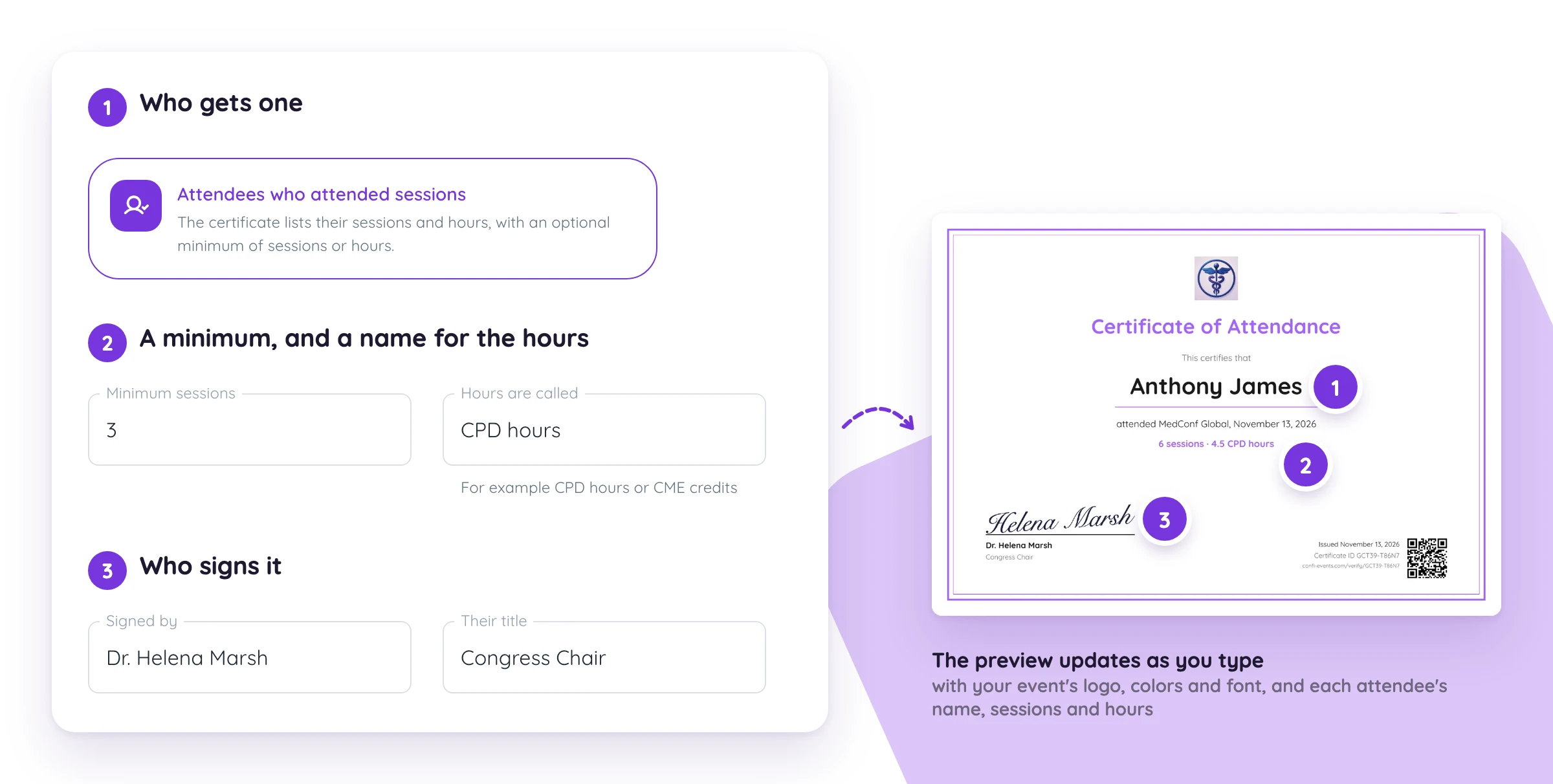
On the Certificates tab, choose who gets a certificate of attendance.
Every attendee gets a certificate with their name, on trust. Attendance tracking can stay off.
Attendees who attended sessions get one that lists their sessions and total hours. Under Requirements, set a minimum of sessions or hours, or leave both empty to give one to anyone who attended at least one session. Parallel sessions count their hours once.
Hours are called renames the hours everywhere, for example CPD hours or CME credits.
Under Certificate, set the title and text, who signs it and their title. Draw the signature in the portal or upload it; a PNG with a transparent background looks best. The certificate takes your event’s logo, colors and font, and the preview below updates as you type.
Issue and Email the Certificates
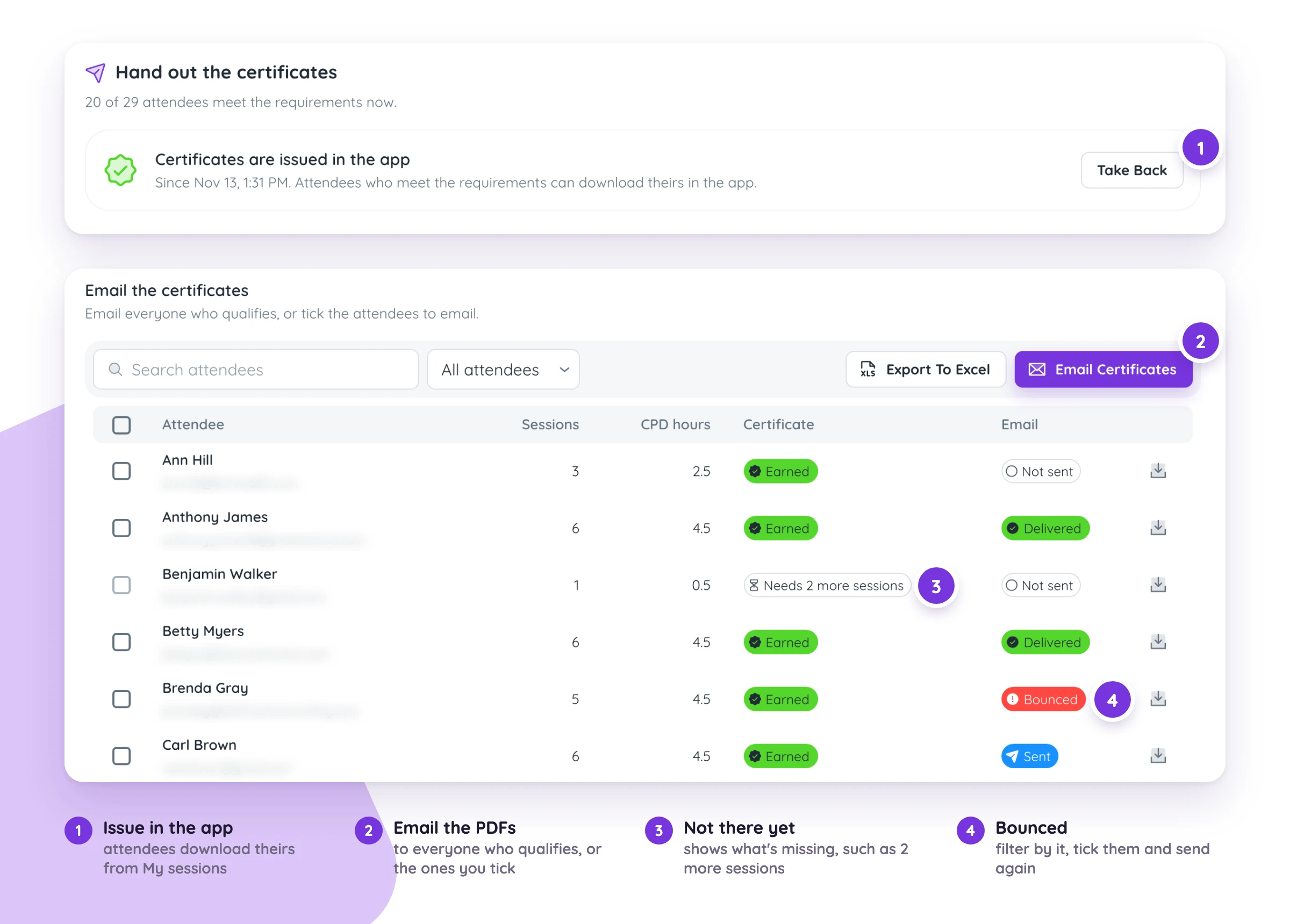
Once the last session is over, click Issue certificates. Attendees who meet the requirements download theirs in the app, and anyone who meets them later gets one too. Take back stops downloads in the app; certificates already emailed or downloaded stay with the attendee.
Email Certificates sends a PDF to everyone who qualifies and wasn’t emailed yet, or to the attendees you tick. It doesn’t need the certificates issued first, and the emails keep going out with the page closed. Each row shows the email status, from Sent to Delivered or Bounced, and the list filters by it so you can tick the bounced ones and send again.
Verifying a certificate
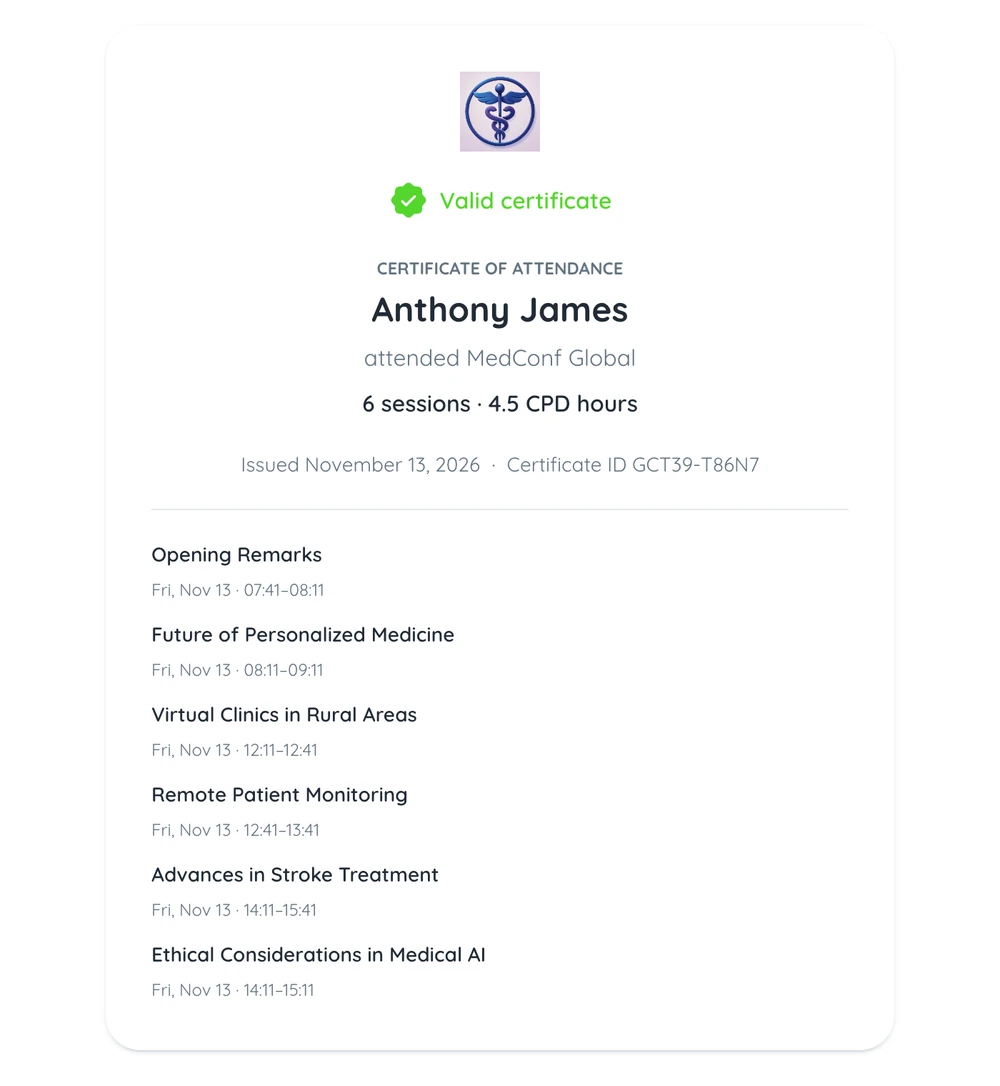
A certificate’s ID and issue date are fixed the first time it is emailed or downloaded, so every copy is the same certificate. Its QR code opens a public verify page with who it was issued to, the event, and the sessions and hours. The page stops verifying it if you turn certificates off or remove the attendee from the guest list.
For accredited CPD or CME: attendance is recorded when an attendee comes in, and hours count each attended session’s full length. There is no exit scan, so check what your accrediting body requires.
Frequently Asked Questions
Do attendees need the Confi app to check in to a session?
Attendees with the Confi app check in themselves by scanning the room code. Guests without the app are checked in by staff, who scan the QR code on their ticket email from the room’s scanner in the admin portal.
Can someone check in to a session from outside the room?
The room code changes every 30 seconds and only works from 15 minutes before a session starts until 5 minutes after it ends, so a photo of the code sent to someone outside the room stops working within seconds.
What if an attendee forgot to scan the room code?
An editor adds the attendance by hand from the session’s row on the Attendance tab, and the attendee’s sessions, hours and certificate update straight away.
Do certificates of attendance need attendance tracking?
Certificates of attendance work with attendance tracking off. Choose Every attendee under Who gets a certificate of attendance, and every attendee gets a certificate with their name, on trust.
Can I send the certificates before issuing them in the app?
Emailing and issuing are separate. Email Certificates sends PDFs from the attendee list at any time, and Issue certificates only controls whether attendees can download theirs in the app.

© 2025. All rights reserved