Lead Scanning and Networking for Sponsors Reps
Collect, connect and share
August 29, 2026
By The Confi Team
Getting Access to Lead Scanning
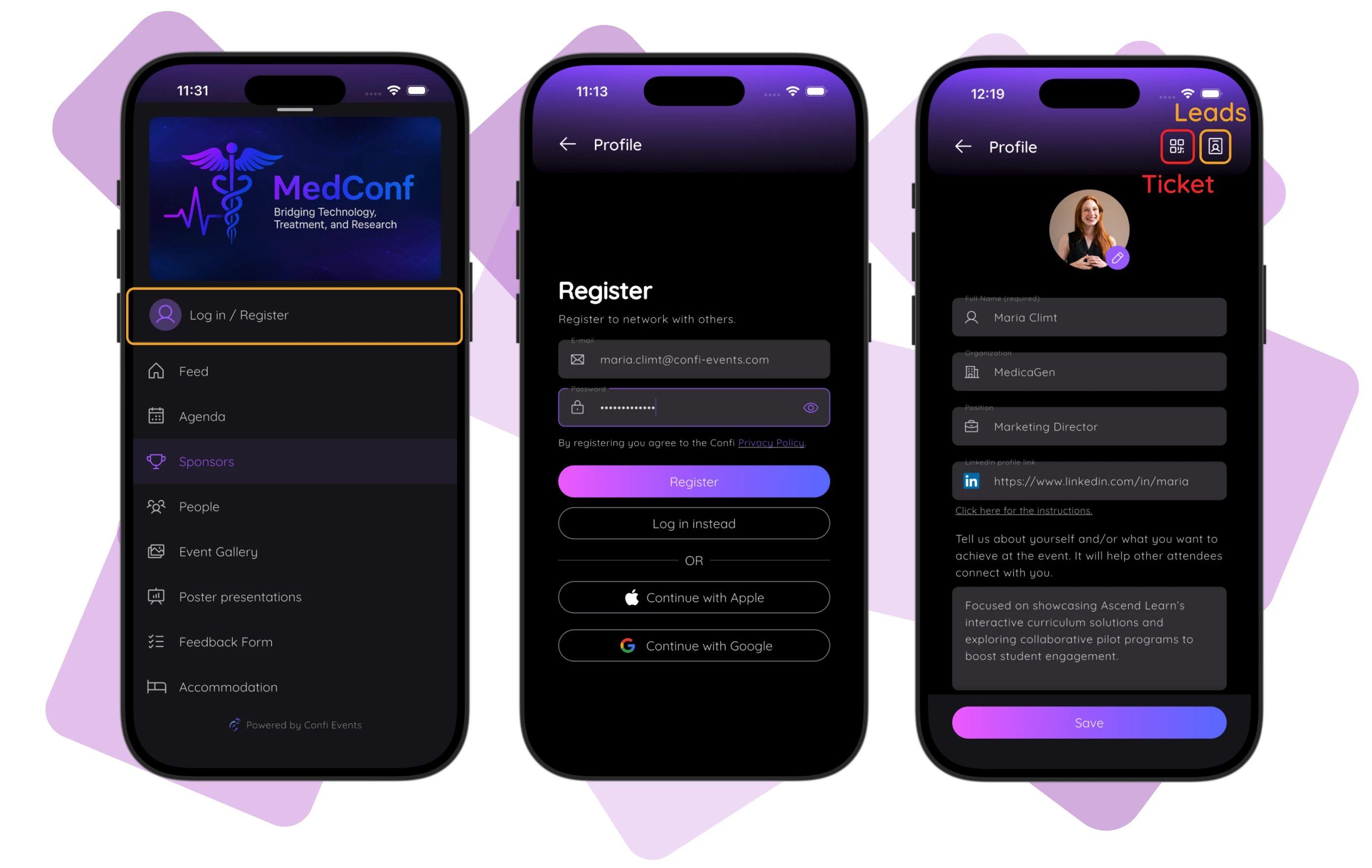
You don't request access yourself, your event organizer has already assigned you the role. So you need to make sure to log in or register with the email address you provided them. You access the Log in / Register screen from the main Menu. In order to be visible to attendees in the app make sure you fill out your profile.
If you the account is linked correctly you will see the Leads icon on the top right of your profile, right next to your Ticket, provided you have one.
How to Scan Leads
From your profile scan tap the Scan icon in the top right corner as explained above. This will take you directly to the Lead Scanning screen. From here:
Tap Scan Lead at the bottom of the screen. It opens a camera view in place.
Point the camera at the attendee's ticket QR code, whether it's on their phone's My Ticket screen or their physical badge. To find the user's ticket in the app, simply navigate to their profile page and you'll find it in the top right corner, the same place where you found the lead scanning icon.
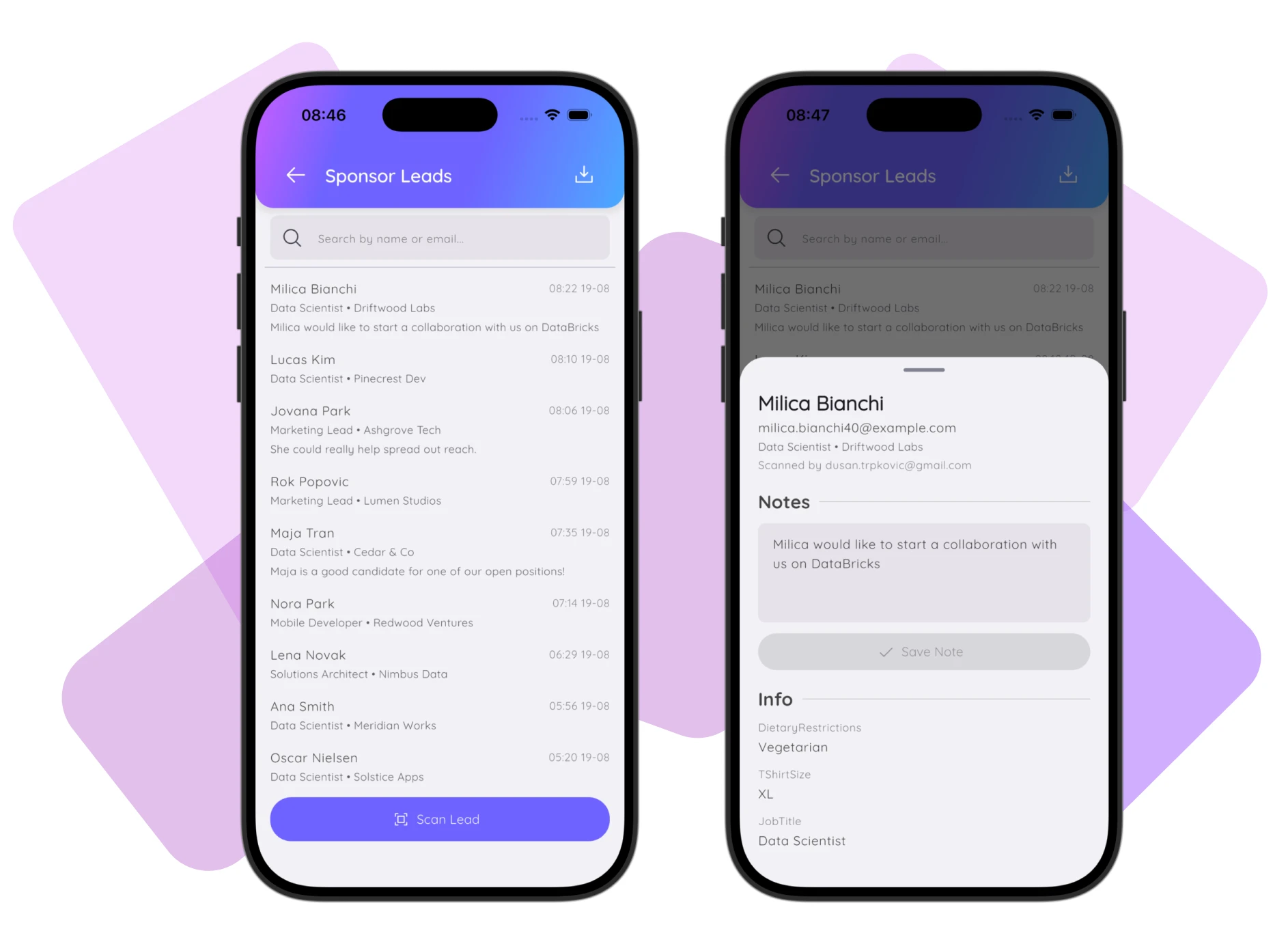
The lead is captured automatically. A sheet opens with the attendee's name, email and any other information the organizer collected and shared during registration.
Optionally add a note, then tap Save Note. Close the sheet and you're back at the scanner, ready for the next person.
If you scan someone who's already in your list, Confi shows an “already have this lead” banner instead of creating a duplicate. Your original note and the original scan time stay exactly as they were.
Finding and Exporting Your Leads
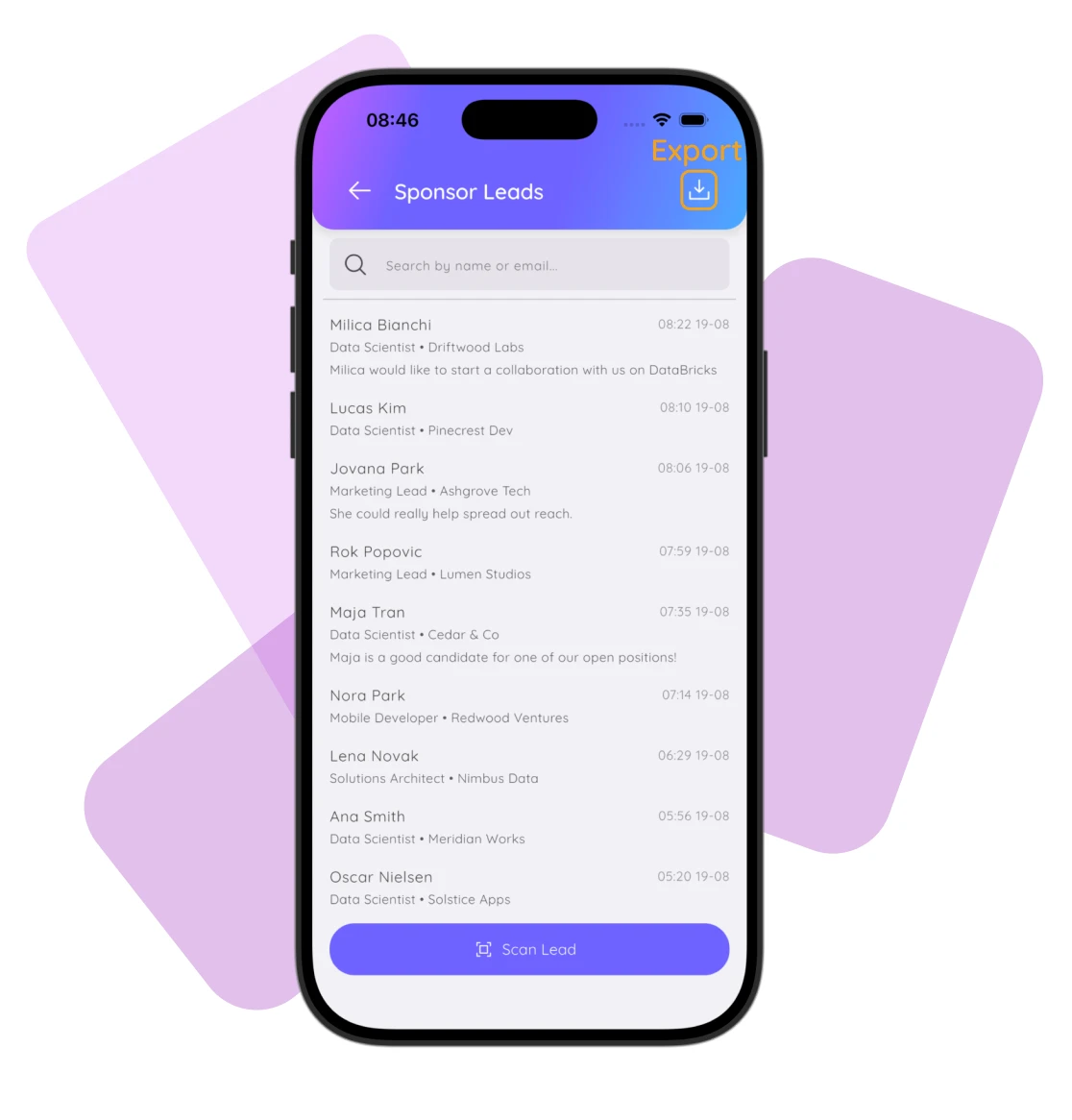
Below the scanner, every lead you and your colleague representatives collect lands in one live list: name, email, company, position, and any other attendee info, as well as service information like when and by whom they were scanned, and your notes. Use the Search by name or email field to jump straight to someone if the list gets long.
When you're ready to work the leads outside the app, tap Export Icon in the top right corner to get a CSV file with all the info about the leads you have collected.
How Attendees Find You
Attendees can reach you through a few different paths in the app, and all of them lead back to the same profile:
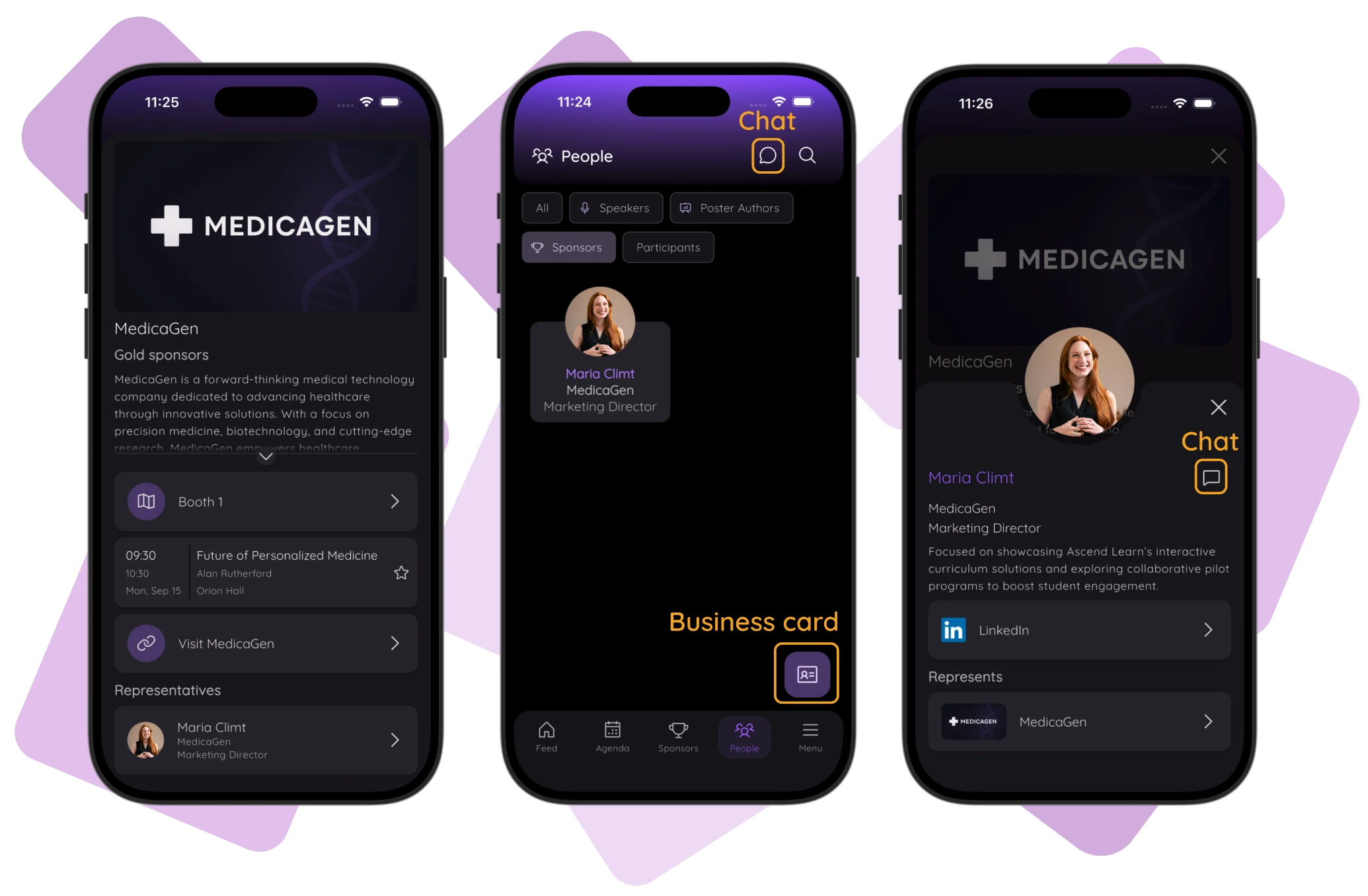
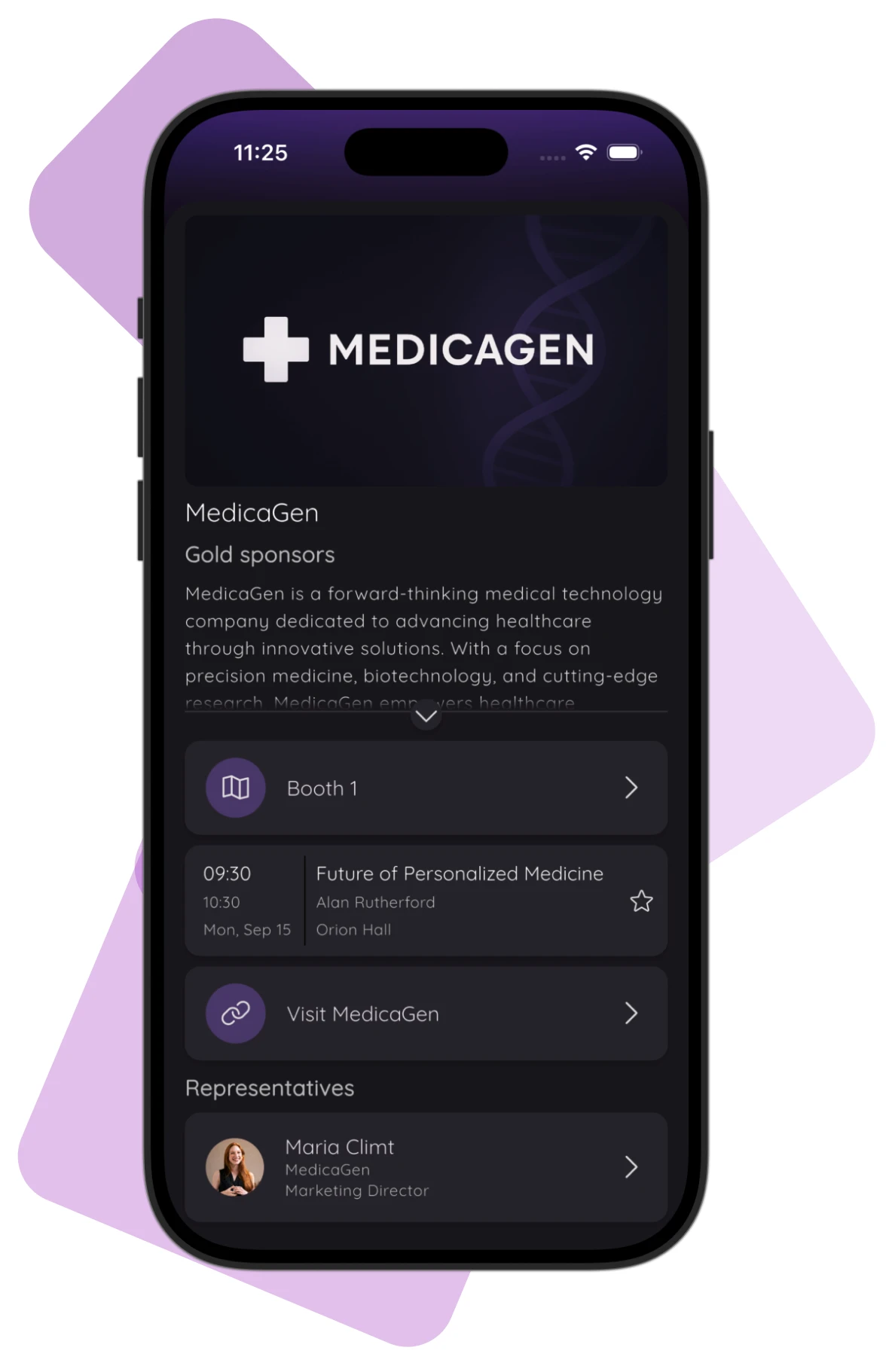
Your sponsor's detail page. Anyone who taps your sponsor from the Sponsors section sees a Representatives list with your photo and name. Tapping you opens your profile.
The People directory. The app's People screen has a Sponsors filter chip that lists every sponsor rep at the event directly, alongside speakers and other participants.
Chat with attendees
Once an attendee opens your profile, they'll see a chat icon next to your name (as long as the event has chat enabled). Tapping it starts a direct, one-to-one conversation with you, the same messaging system used across the rest of the app. You can of course do the same for any attendee you'd like to chat with.
Share more via Business Card
If you wish to share more personal contact information with an attendee you can do so via your Business Card. You can choose exactly what information you share from your profile. When a user scans your Business Card it will be added directly to their phone's contacts.
You can find the Business Card on the Feed Screen, the People Screen, or you can share it directly in a Chat.
What's on Your Sponsor's Profile
Your sponsor's profile is set up by your event organizer in the Confi admin portal, not by you in the app. It's worth knowing what's on it, because attendees see this before they ever get to you:
Logo, shown in a 16:9 image at the top of your sponsor's page.
Description, the main copy attendees read about your company.
Booth location, so attendees can find you on the floor (it links straight into the event map if the event has one).
Sponsored sessions, any talks your sponsored by this sponsor. This is also shown directly in the agenda and session details.
Website link, with custom display text your organizer sets, e.g. “Visit Sponsor.com.”
Representatives, the list of reps linked by email, which is where you show up.
If any of that needs updating, that's a conversation with your event organizer, not something you'll find a settings screen for in the app.
Frequently Asked Questions
Do I need to download a separate app to scan leads?
No. Lead scanning lives inside the same Confi app attendees use for the agenda and networking. Once your event organizer links your email to their sponsor listing, a Sponsor Leads icon appears on your Profile screen the next time you sign in with that email.
What if I represent more than one sponsor at the same event?
When you tap the Sponsor Leads icon, Confi first asks "Scan leads for which sponsor?" and lists every sponsor your email is linked to. Pick one to open that sponsor's scanner and lead list. Leads you scan are always attributed to the sponsor you selected.
Can I edit my sponsor profile myself?
Not directly. Your sponsor's logo, description, booth location, and website link are managed by your event organizer in the Confi admin portal. What you can control is your own Confi profile: your name, photo, company, position, and bio, which is what attendees actually see when they look up your sponsor's representatives or open a chat with you.
What happens if I scan the same person twice?
Confi recognizes the repeat scan and shows an "already have this lead" banner instead of creating a duplicate. Your original notes, and the original scan time and scanner, are preserved. It's a safe way to double-check someone is already captured.
How do I get my scanned leads out of the app?
Tap Export as CSV in the top bar of your sponsor's lead list. Confi generates a CSV with each lead's name, email, your notes, any custom registration fields the organizer collected, and when and by whom they were scanned, then lets you open or share the file.
Can I network with leads in the app?
Yes. Attendees can create their participant profile and appear in the Confi app for networking. Search for them on the People screen, open their profile, and you can start a direct chat or share your Business Card, which drops your contact details straight into their phone.

© 2025. All rights reserved