Registration: Sign-Ups, Tickets, Badges and Check-In
From sign-up to scanned badge
September 2, 2026
By The Confi Team
Everything to do with getting attendees into your event lives in one place in the admin portal: the Registration page. It's split into four tabs, Sign Ups, Ticketing, Badges, and Check-in, that cover the whole journey from someone registering to being scanned in at the door.
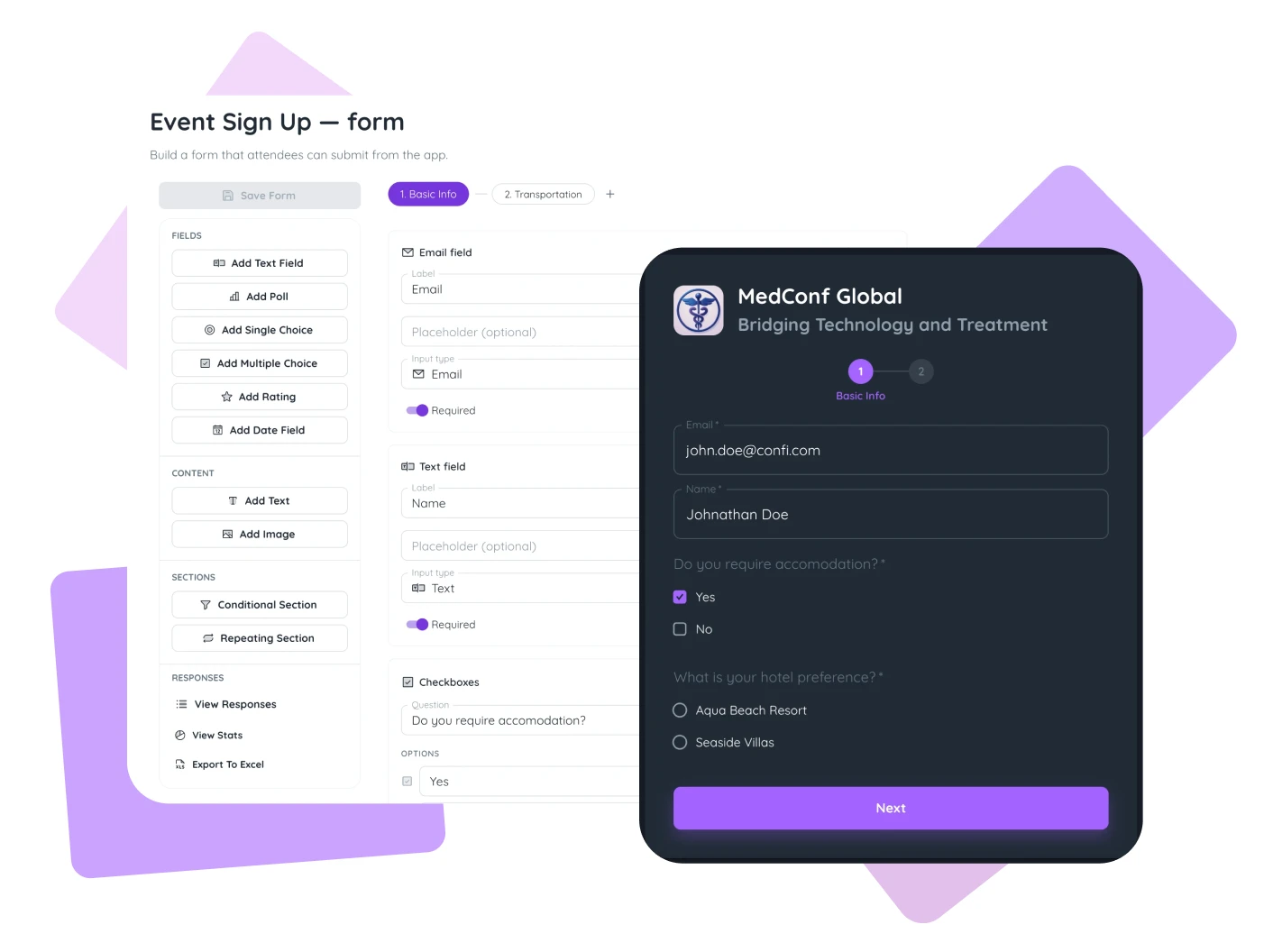
Collect Sign Ups for your event
Share a branded public sign-up form, import a spreadsheet, or add attendees by hand, everyone lands in one Sign Ups list in real time.
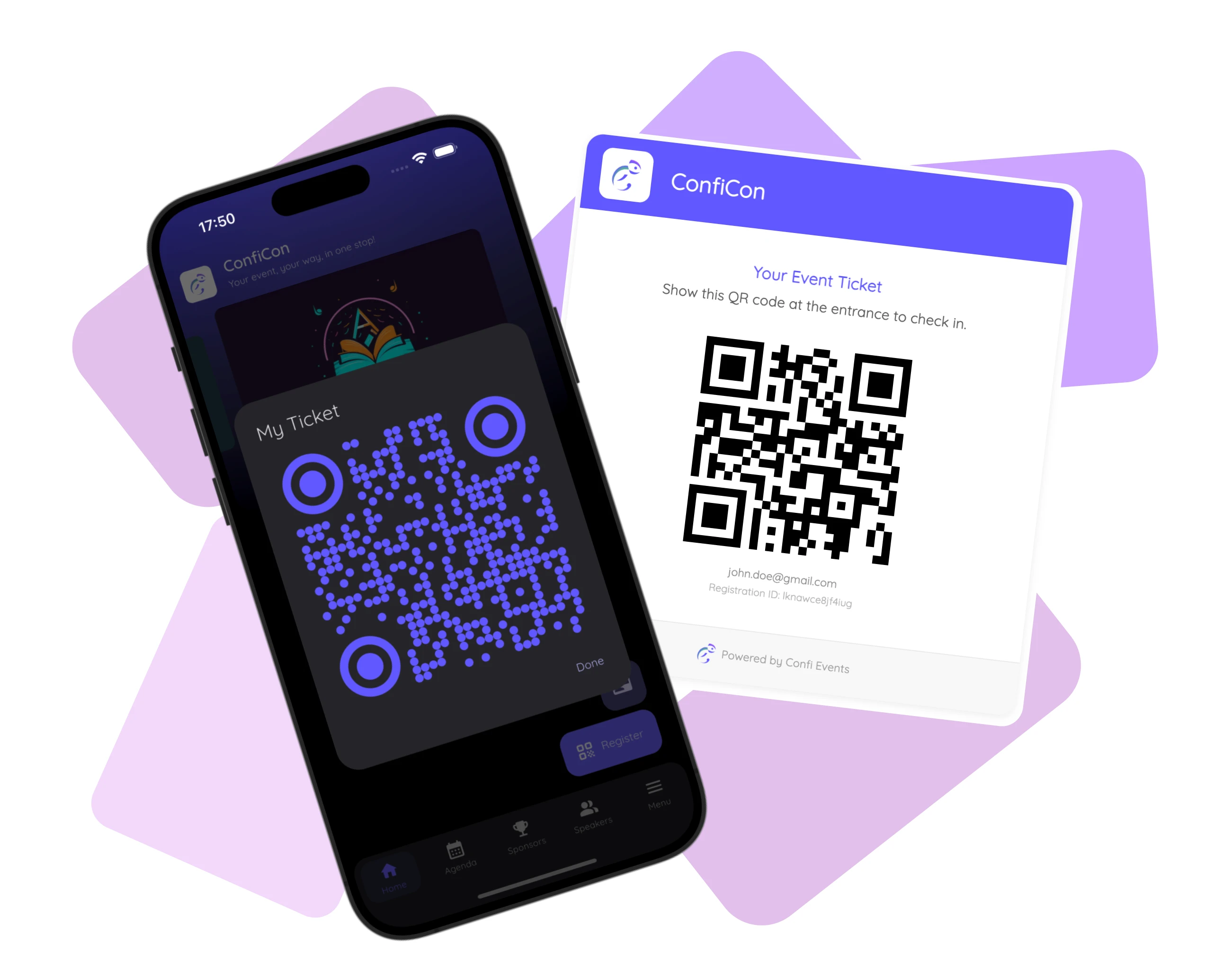
Send tickets by email
Design one email template, then send every attendee their QR ticket, or resend to a single person, from the Ticketing tab.
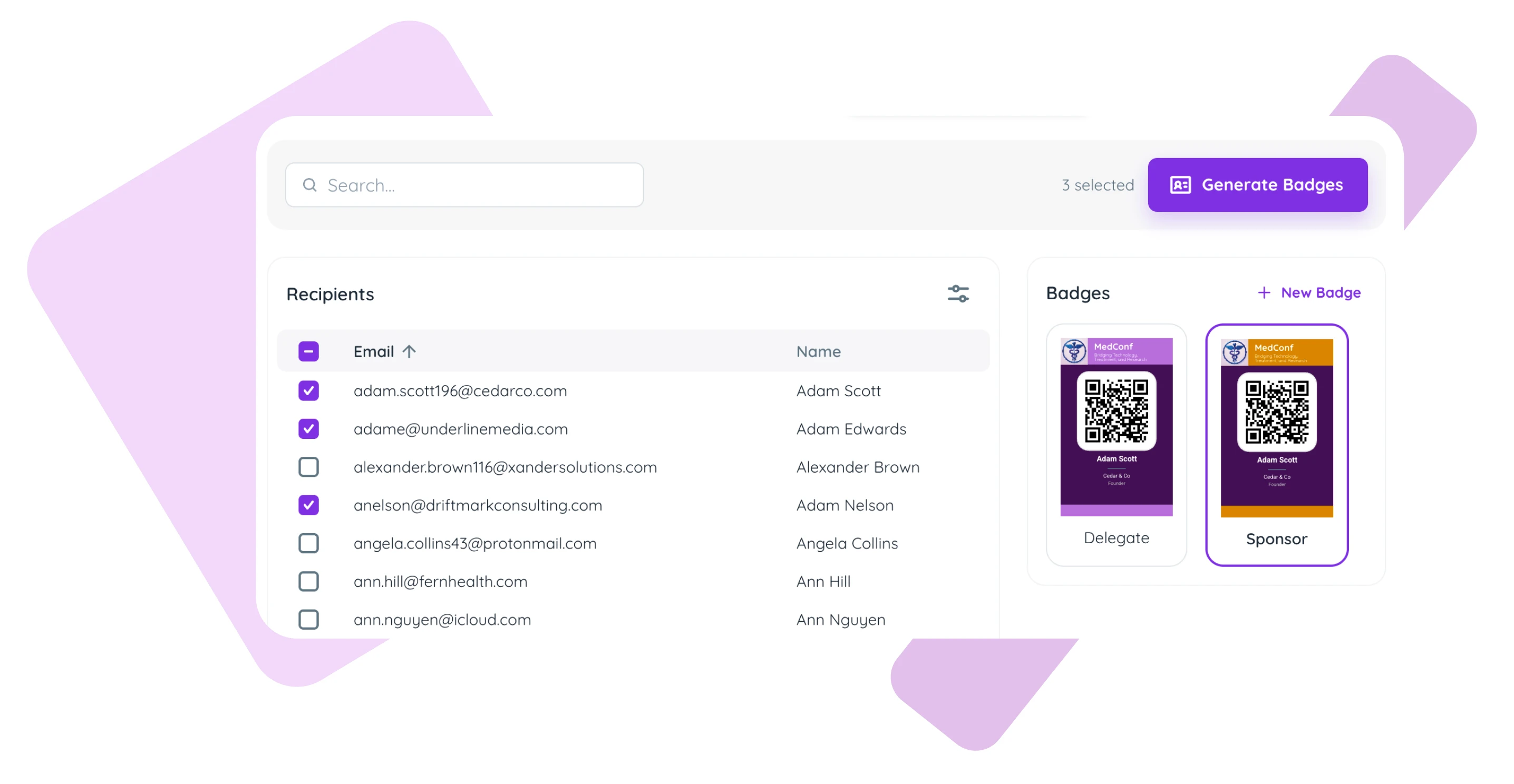
Generate badges for printing
Design one or more badge layouts in the built-in editor and export print-ready PDFs for exactly the attendees you choose.
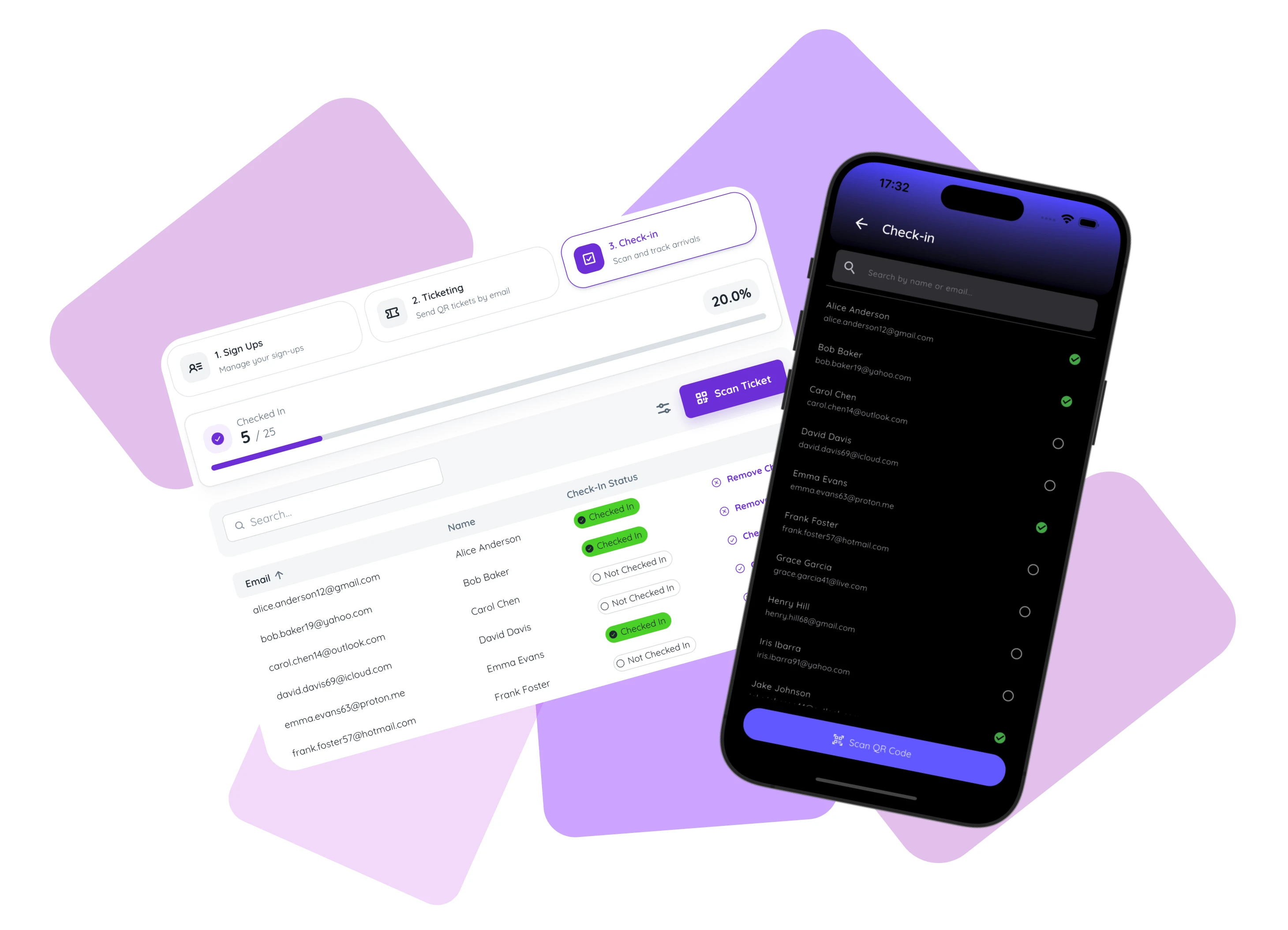
Check in attendees at the event
Scan tickets or check attendees in manually from any device at the door, with status syncing instantly across every entrance.
Collect Sign Ups for your event
The Sign Ups tab is your overview of your event attendees.
There are three ways to add attendees:
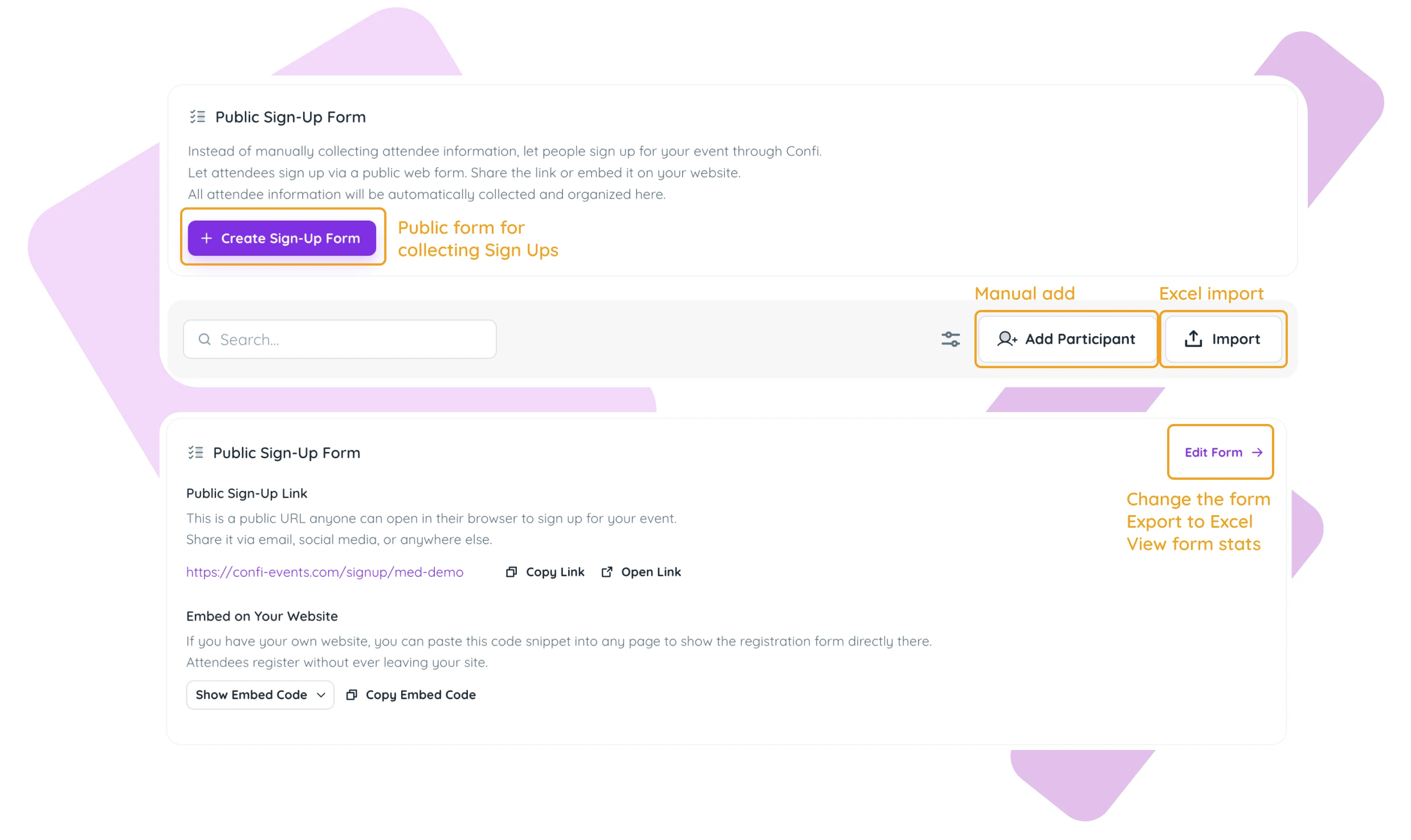
The public sign-up form: share the public link and let attendees register themselves.
Import: if you already have a list of attendees just upload the spreadsheet.
Add Participant: enter an attendee by hand for those last minute additions.
The public sign-up form
The public form allows you to collect sign-ups for your event directly with Confi. Build your form with our fully configurable builder offering flexibility to collect information about accommodation, transport, guest personals etc.
After you've built your form share the Public Sign-Up Link by email or on your website, or even Embed it in your own Website.
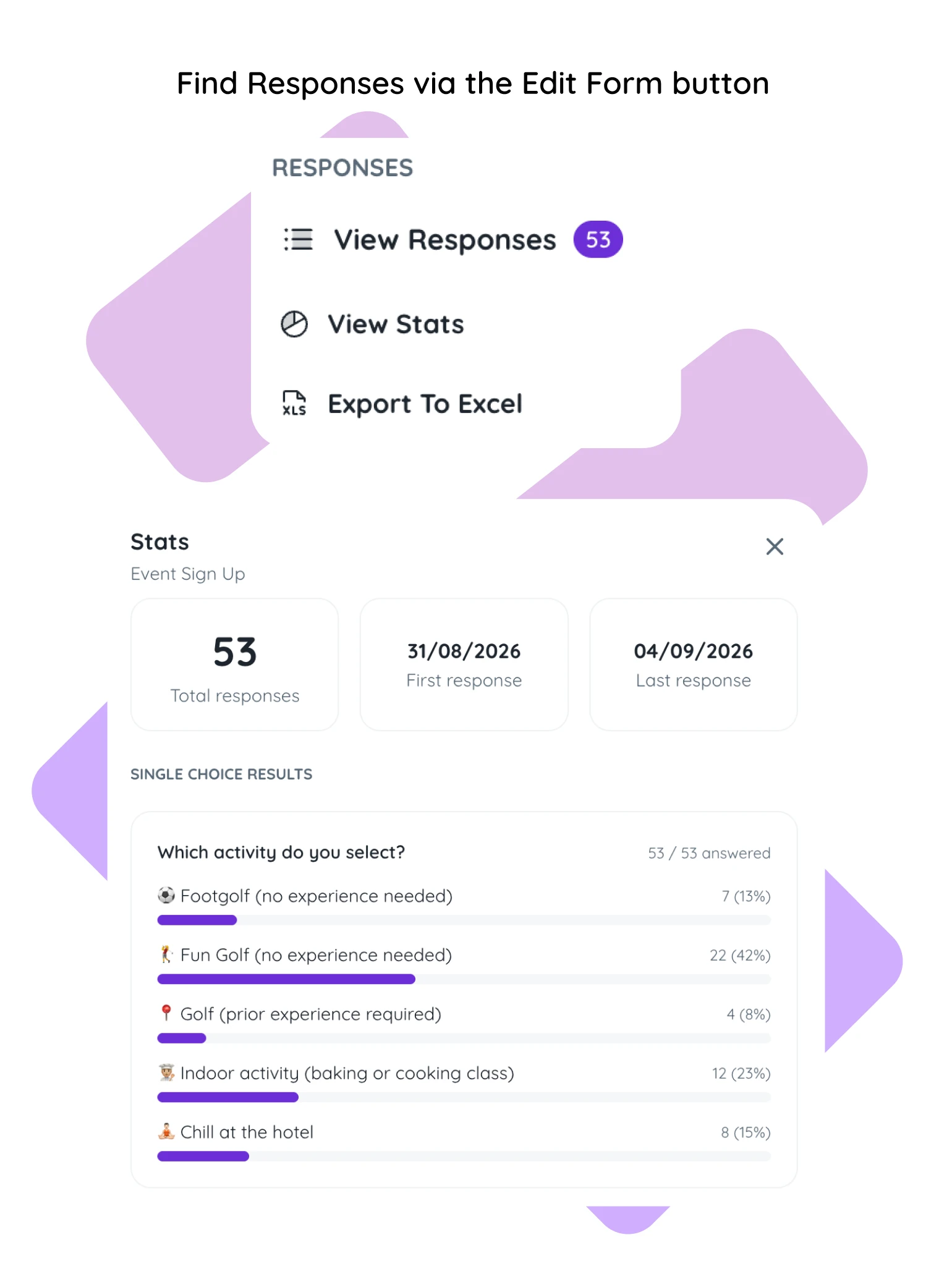
From the Edit Form screen you can also export your sign-ups to Excel at any time, or open Signup Stats to see how registrations are trending.
Import participants
If you already have a list of attendees or have multiple sing-up channels use Import to bring in a spreadsheet (.xlsx, .xls, or .csv). It's important that the spreadsheet has email and name column. Optionally have a company and position plus any other columns you want.
Confi matches rows to existing entries by email, so re-importing an updated file won't create duplicates, and the import summary tells you exactly how many rows were created, updated, or skipped.
Add Participant
You can also always add an attendee by hand. Add Participant opens a form for a name, email, and any custom fields you want to record for that one attendee, useful for a last-minute registration or a VIP you're adding yourself.
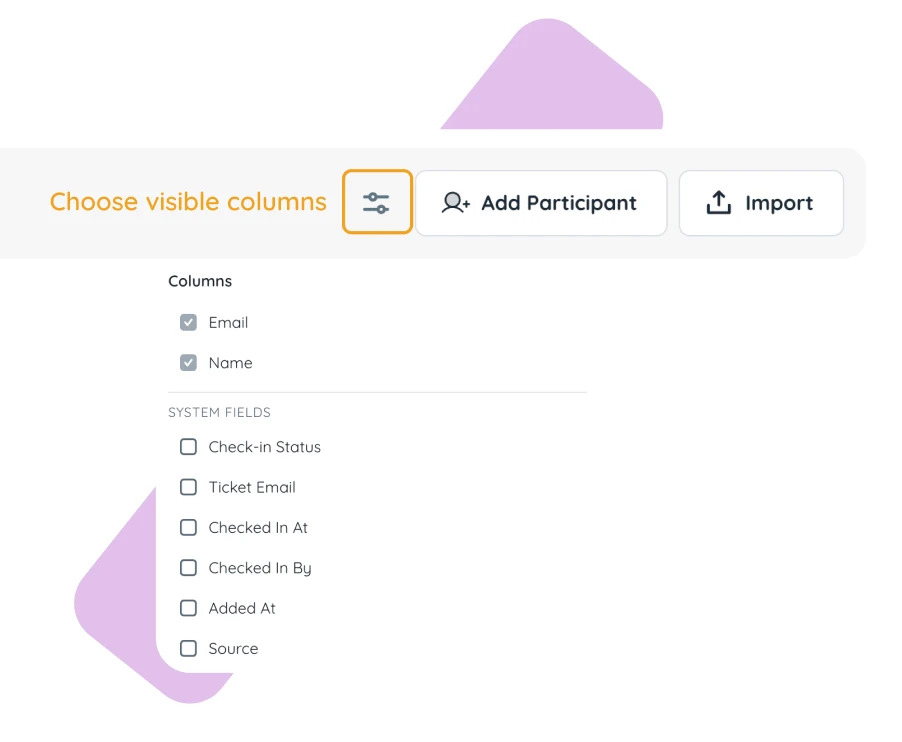
Tip: You can choose which columns you see in the attendee table to make it easier to browse.
You can also search by any column value.
Send Tickets by Email
Set up an Email Template with our simple editor. Then use Send Ticket Emails to send to everyone at once, or select only the attendees you want to send to. Each attendee will receive a personalized email with a QR code that represents their event ticket. They can also access their ticket in the Confi app if you toggle Enable Ticketing. When they get to the event, attendees present their QR code and you can instantly sign them in and issue a badge, gift bag, etc.
Generate badges for printing
The Badges tab has a built-in badge designer where you pick a size, arrange the fields you want on the badge, and export the result as a print-ready PDF.
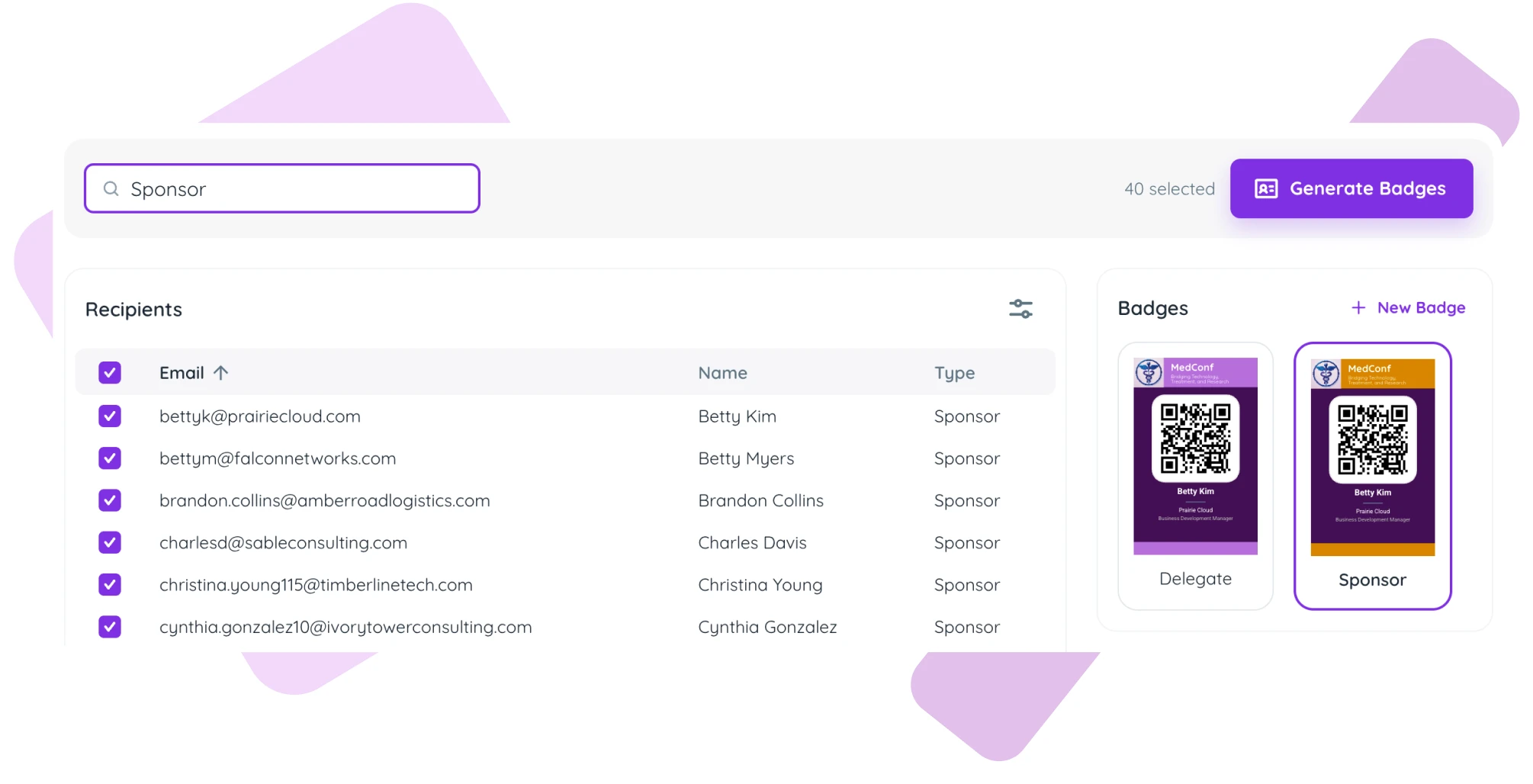
You're not limited to a single design. Create different badges for visitors, speakers and sponsors. Have a full-color design for the batch of badges printed before the event, and a plain black-and-white design for a thermal printer at the registration desk, for walk-ins or last-minute additions.
Select which attendees you want the badges generated for and simply click the Generate Badges button. Remember you can select which columns are visible and search by any attendee field to narrow down the list.
Check-in attendees at the event
On the Check-in tab, tap Scan Ticket to open the QR scanner and check attendees in as they arrive, or check someone in manually from their row in the list.
This all works from any device, a laptop at a check-in desk, a tablet at a second entrance, or any organizer's phone, and every check-in syncs in real time in one list.
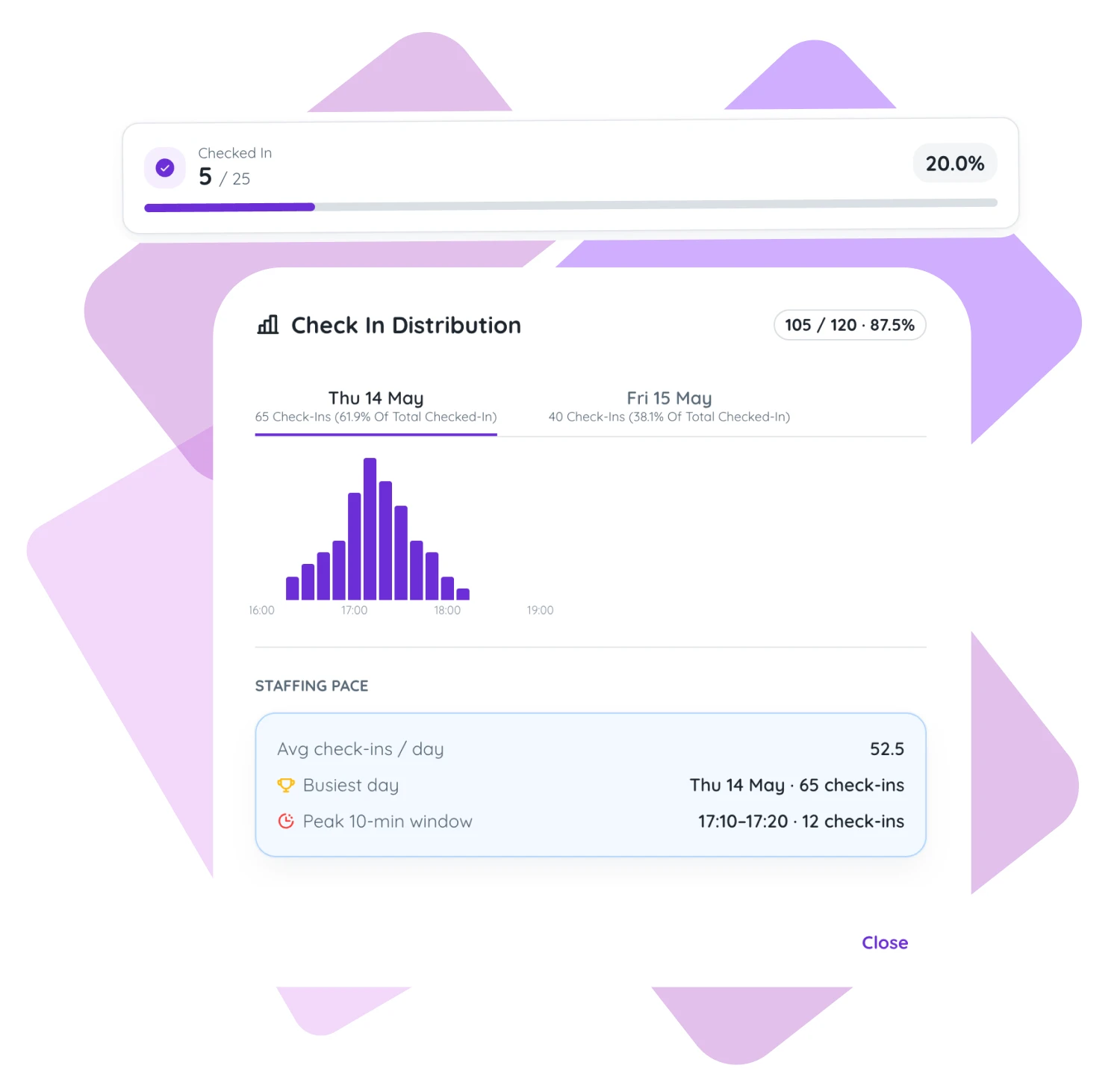
By clicking on the Checked in banner, you will also get a statistics overview of how your check-in is progressing. You will see a timeline overview of your busiest times and days.
The App Is Optional, but an Excellent Addition
None of this requires the Confi app on your end. Sign-ups, tickets, badges, and check-in all work entirely from the admin portal. That said, the Confi integrates perfectly with the Registration flows we've described above.
Attendee tickets in the app
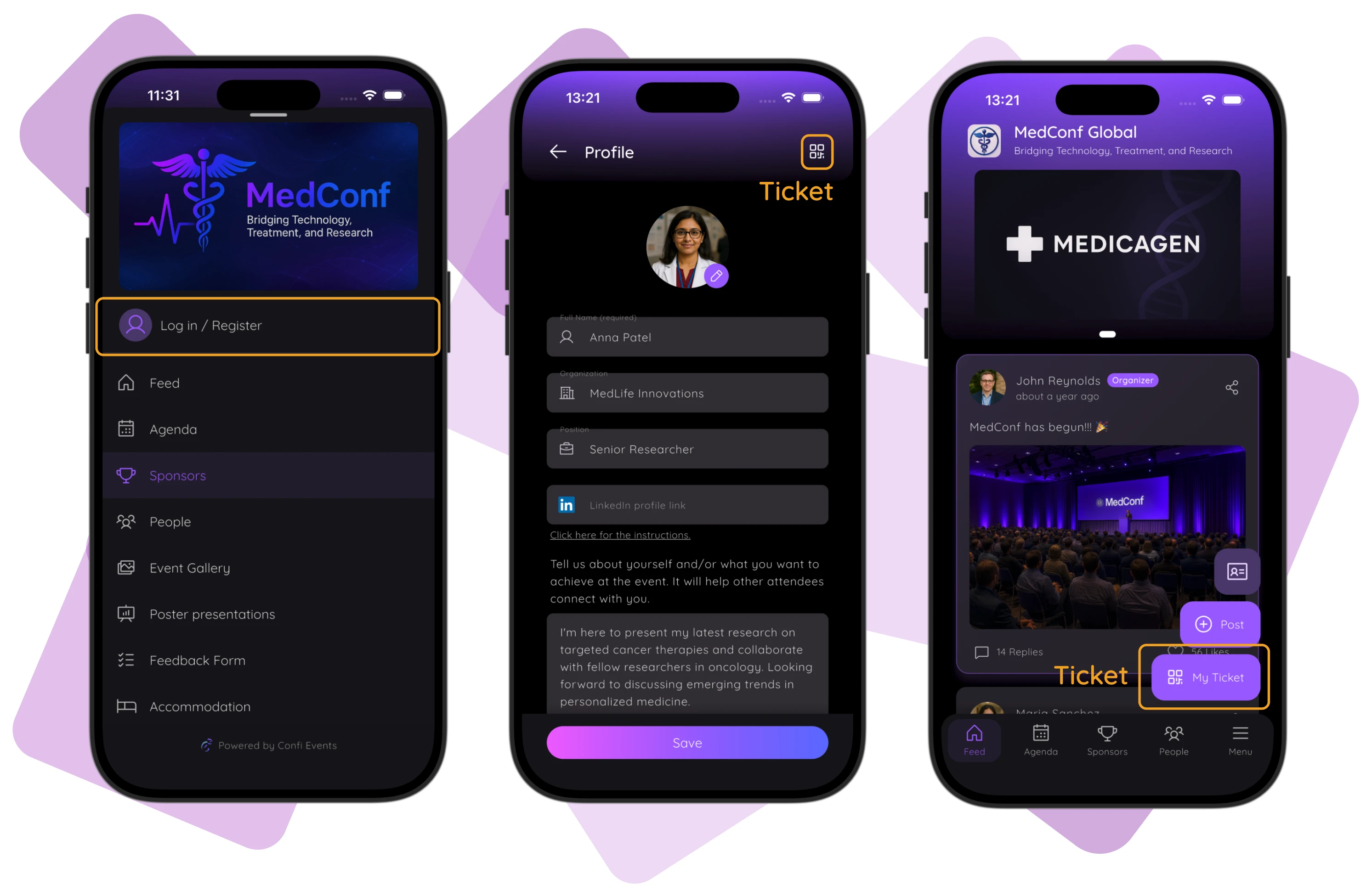
Attendees find their own ticket on their Profile screen in the top right corner. They can also see it on the Home Screen before they have been checked-in for easy access.
It's the same QR code you have already sent them by email. To see their ticket the attendee should Register or Log In with the same email they used to sign up for the event (or you imported).
Add editors to help with check-in
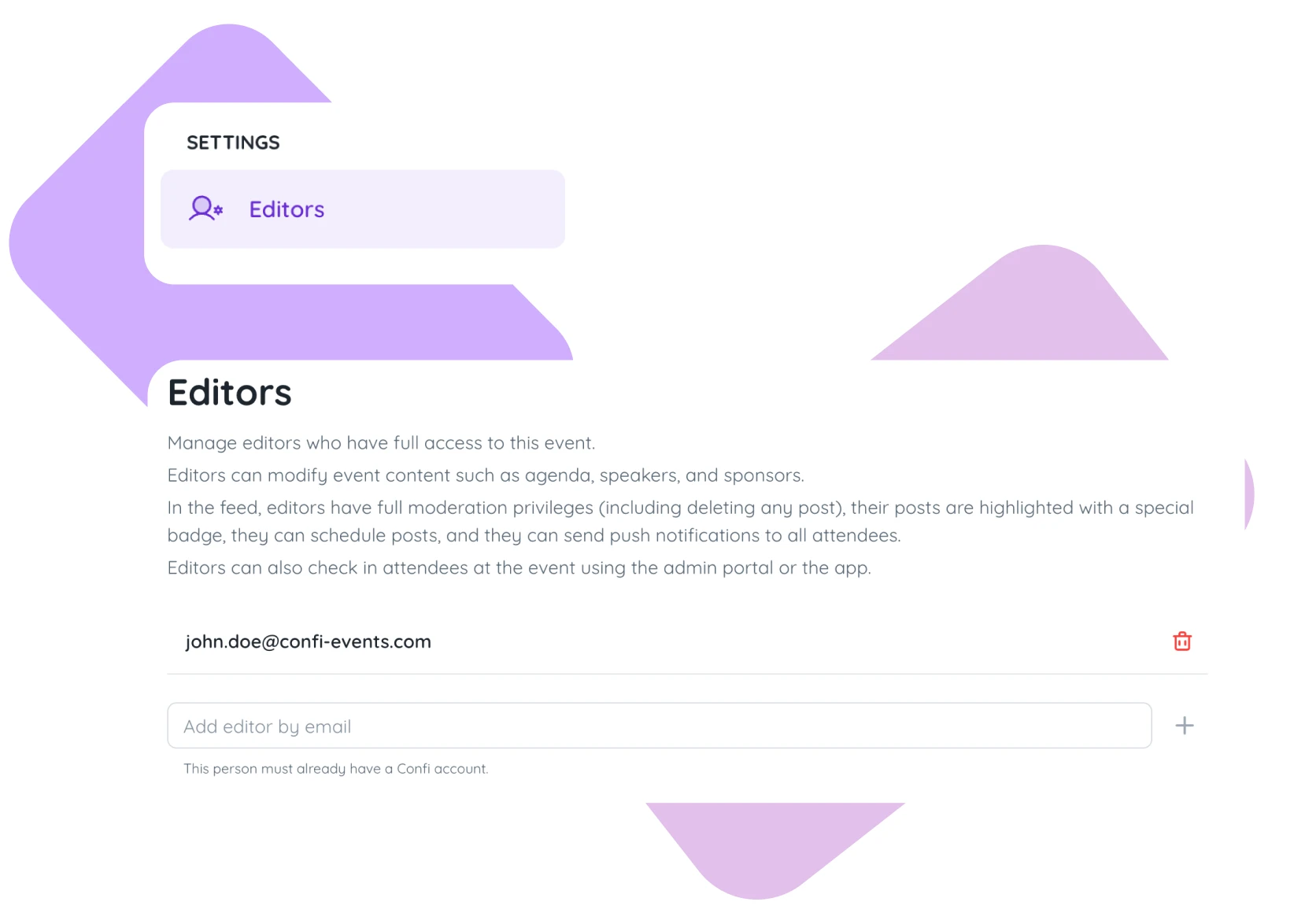
You can add users to help scan tickets, whether from the admin portal or their own phone. They should first make a Confi account and then you can add them to Editors located in the sidebar Menu. Editors can check attendees in from either the admin portal or the app, so check-in doesn't have to bottleneck on a single person or device.
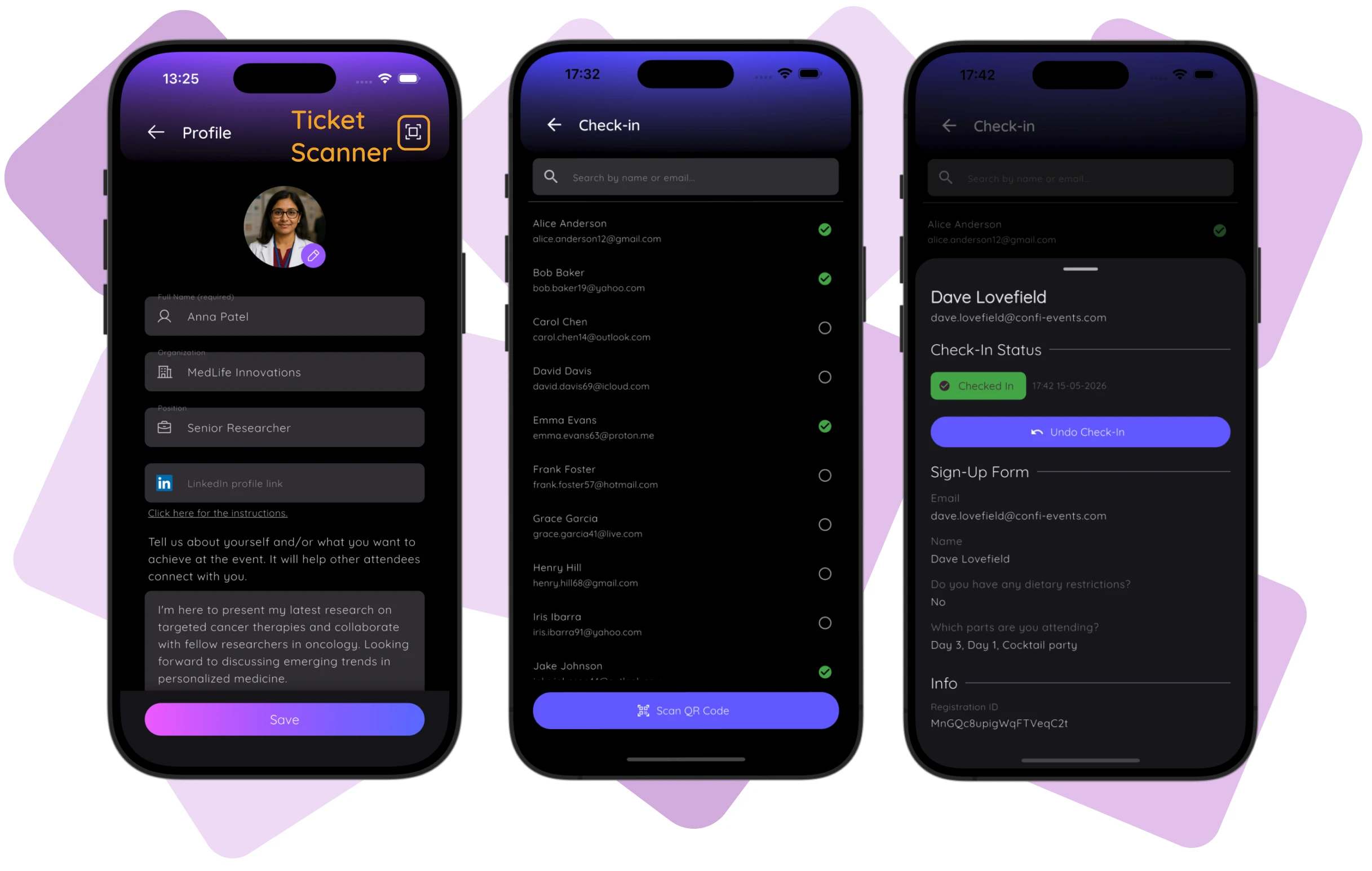
The assigned Editors can find Ticket Scanning in the upper right corner on their Profile Page. To see the ticket scanning option they should Register or Log In with the same email you added as an Editor.
Sponsor lead scanning
If you're running a sponsor booth alongside registration, our Lead Scanning and Networking for Sponsor Reps guide covers how sponsor representatives can scan attendee tickets to capture their own leads, using the same ticket QR code this guide walks through.
Frequently Asked Questions
Do attendees need to download an app to get their ticket?
No. Once someone is in Sign Ups, either from the public form, an import, or a manual add, you send their ticket by email from the Ticketing tab as a QR code they can present at check-in, no app required. If they do use the Confi app for the agenda or networking, the same ticket also shows up on their Profile screen.
Do I have to use the Confi app to check attendees in?
No, the app is optional for organizers. Everything in Registration, including check-in, works from the admin portal on a laptop, tablet, or phone browser. However, the Confi app is the perfect addition to your Check-in flow for a mobile first experience.
Can two people check attendees in from different devices at the same time?
Yes. Check-in status syncs in real time, so a scan from a tablet at one entrance shows up instantly on the check-in list open at another entrance or on the organizer's laptop. There's no risk of double counting someone who already came through a different door.
Can I have a different badge design for different purposes?
Yes. You can create as many badge designs as you need and choose who each one is sent to. A common pattern is a full-color design for badges printed ahead of the event, and a simpler black-and-white version saved for a thermal printer at the registration desk, for walk-ins or last-minute additions.
How do I let a colleague scan tickets at check-in?
Add them under Editors in the admin portal with the email address of their existing Confi account. Editors can check attendees in from the admin portal or from inside the app, so you're not the only person who can staff the door.
What happens if someone signs up but I also import the same email later?
Confi matches by email. Importing a file with an email that's already in Sign Ups updates that existing entry instead of creating a duplicate, and the import summary tells you how many rows were created versus updated versus skipped.

© 2025. All rights reserved