Event Check-In App: How to Scan QR Tickets and Track Arrivals Without the Queue
From QR ticket to green check: what Confi check-in looks like on the day
June 26, 2026
By The Confi Team
Every event starts with a queue. Whether it's 40 people or 400, the check-in table is where first impressions form and where things go wrong most visibly. A 2024 Waitwhile consumer survey found that 61% of people have left a queue before reaching their turn, and 80% are only willing to wait up to 15 minutes before giving up entirely.
An event check-in app replaces clipboard frustration with QR scanning, a live searchable guest list, and a real-time count of who has arrived. Here is how Confi handles check-in, from the ticket in your attendee's inbox to the green tick on your screen.
What Is an Event Check-In App?
Event check-in app: a mobile or web tool that records when registered attendees arrive at an event, typically by scanning a unique QR code. It replaces paper lists with a live, searchable database that multiple staff can update simultaneously from different devices.
Unlike general event management platforms, a check-in app is focused on the arrival moment. It gives your team a fast way to confirm identities, mark arrivals, and track how many people have come through the door.
In Confi, check-in is built into the same app your attendees use for the event agenda, session Q&A, and live polls. There is no separate tool to install. Your team accesses it from their phones via the Confi app, or from any browser via the admin portal. According to EventGroove research, 47% of event professionals now use QR codes to improve attendee experiences. Integrated check-in is one of the most direct applications.
The registration form, QR ticket issuance, and check-in scanner are all part of Confi's event registration and ticketing module: one connected workflow from sign-up to arrival.
How Check-In Works in Confi: From Sign-Up to Green Tick
Confi check-in runs as a connected sequence from registration to the door, with no manual data transfer or CSV imports between steps.
Attendees register via your public form. Share a URL and attendees fill in your registration form from any browser. No app download required. Each submission creates a record in your event automatically.
Send QR ticket emails in one click. From the Ticketing tab in the admin portal, a single button sends every registered attendee a personal QR code by email. You can customise the email template to match your event branding, and resend to individuals who haven't received theirs.
Your team scans QR codes at the door. Each scan looks up the registration instantly, marks the attendee as checked in, and confirms on screen. The whole exchange takes under five seconds.
Manual search as a fallback. If an attendee can't find their QR, you search by partial name or email and check them in with a tap. No one gets turned away for losing an email.
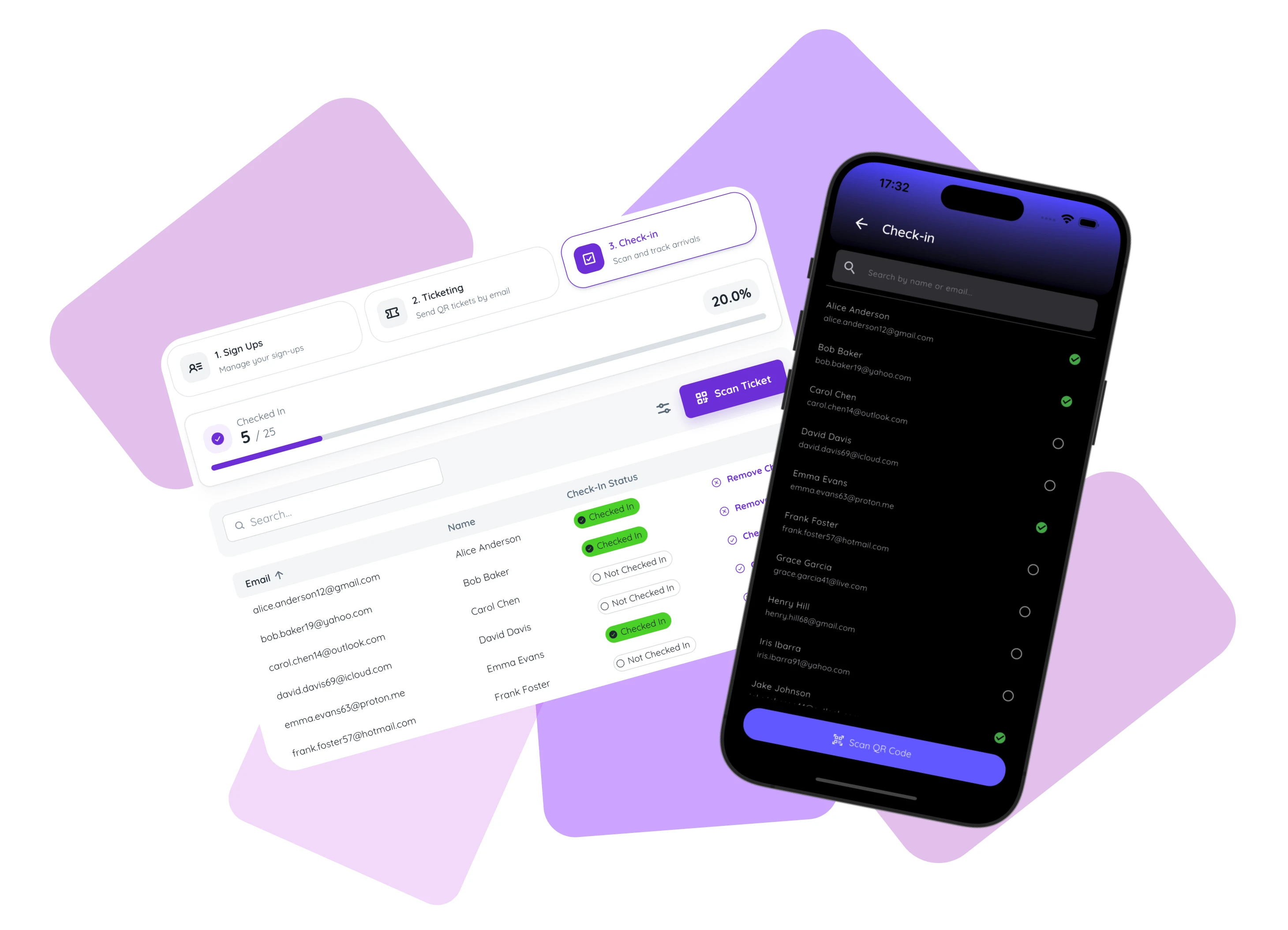
Throughout the process, the admin portal shows a live progress bar: checked-in count over total registered, with an exact percentage that updates in real time as your team works.
Using the App to Check In Attendees
The Confi app gives your check-in staff a fast, portable tool that works from any phone without a laptop or power point at the entrance.
The check-in list
Navigate to Check-in from the event menu. You see a scrollable list of every registered attendee, ordered alphabetically. A green circle means that person has arrived; a grey circle means they haven't checked in yet.
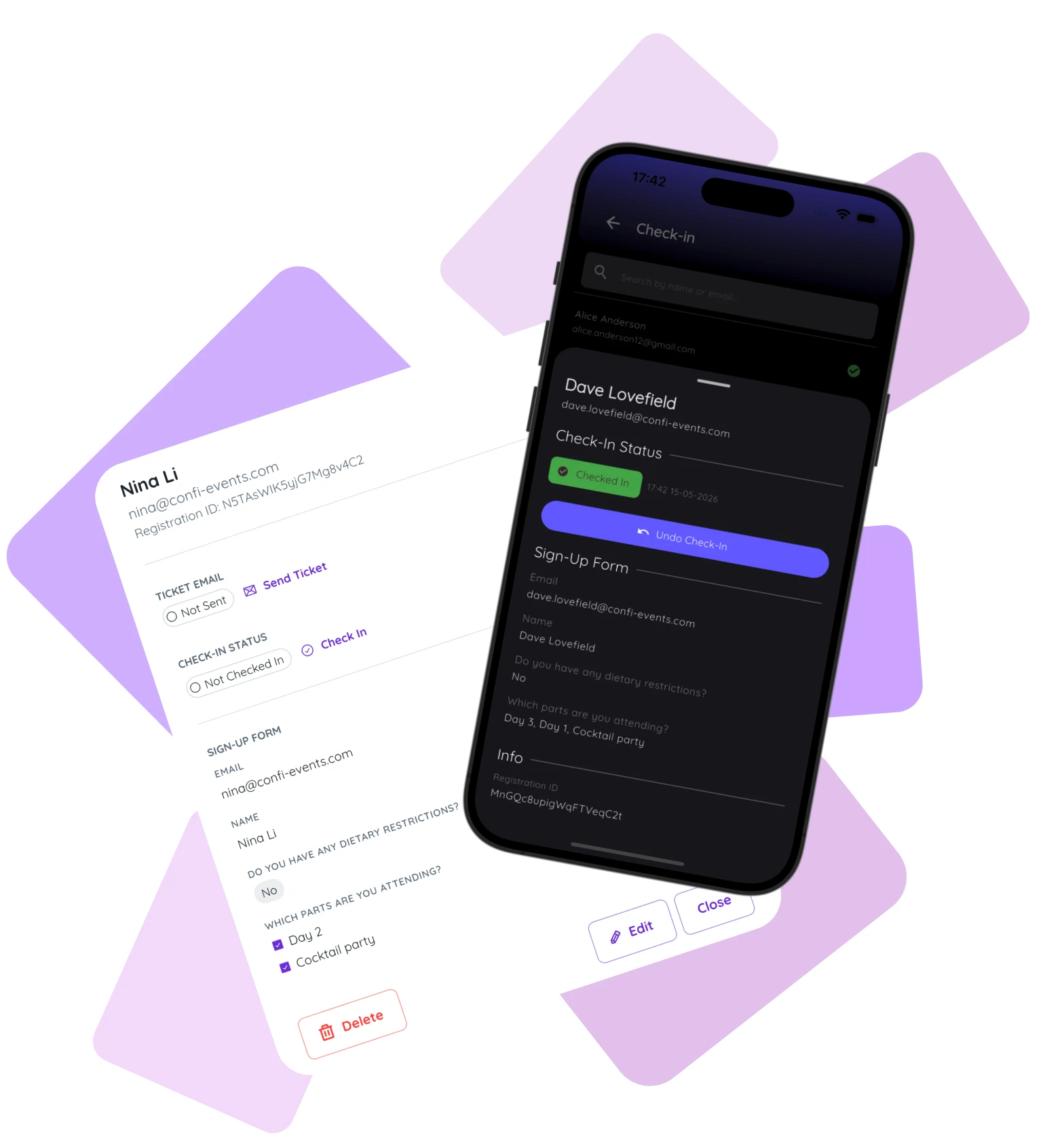
Tap any row to open the detail sheet. From there you can confirm name and email, review sign-up form responses if the attendee registered via a Confi form, and toggle their check-in status with a single button. The sheet also shows the exact timestamp of when they checked in.
Scanning a QR ticket
Tap Scan QR Code to open the camera. Point it at the attendee's phone screen or a printed ticket. The code is detected in under a second. When valid, the registration appears and is marked as checked in automatically.
If the same QR is scanned a second time, the app shows a red warning banner with the original check-in timestamp. That prevents a shared or borrowed ticket from letting someone in twice. The scanner also validates that the QR belongs to your specific event. Codes from a different event are rejected before any record is changed.
Searching by name or email
Type a partial name or email into the search bar and results filter immediately, searching both fields at once. This is the fastest fallback when an attendee's screen is too dim to scan, when they registered with a different email, or when they simply never got the ticket email.
Managing Check-In from the Admin Portal
The admin portal check-in view is the desktop-first option, useful for a volunteer stationed at a laptop at the entrance or for organizers who prefer a larger screen.
The Check-in tab within the Registration module shows the same attendee table as the app, sortable by name, email, or check-in status. Click any row to open the participant detail dialog, or use the check-in toggle button on each row to mark arrivals without leaving the table view.
The Scan Ticket button opens your browser camera, running the same QR scanner in a browser tab. Any device with a camera and internet access can run check-in from the portal, including tablets and shared laptops, without any app download for the organizer.
The table also shows a Ticket Sent column for each attendee. Before your event starts, use this to spot anyone who hasn't received their QR email, and resend it to them individually before they arrive at the door without one.
Check-In Analytics: See Your Arrival Curve and Plan Staffing
The Check-in tab shows a live progress card at the top: checked-in count, total registered, and a percentage that updates in real time as your team scans at the door.
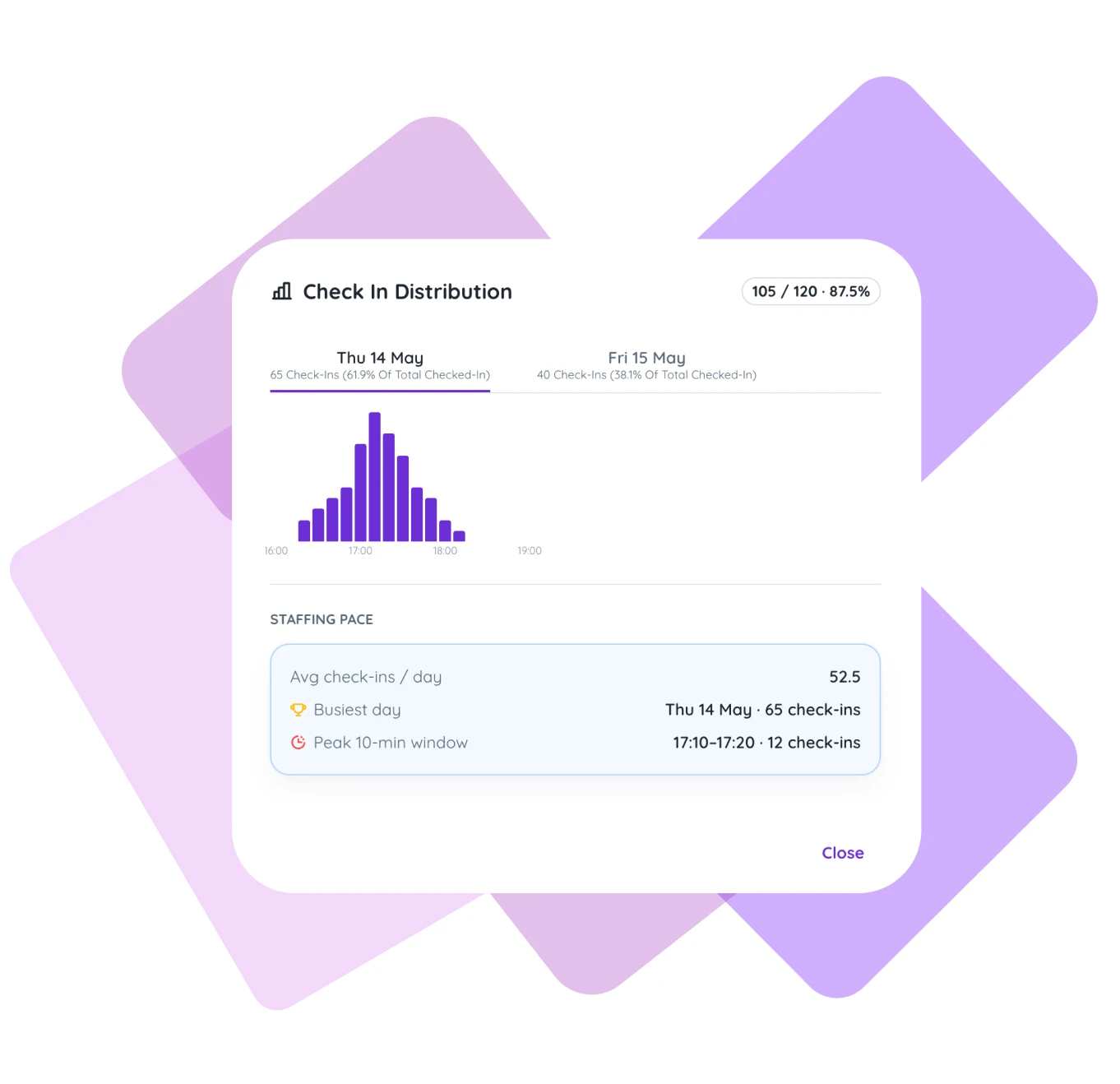
Click the card to open the Check-In Distribution panel. It shows a bar chart of arrivals broken into 10-minute intervals across the event day. For multi-day events, each day gets its own tab with a per-day total and its share of overall attendance. Hover any bar to see the exact count for that interval.
Staffing Pace
Below the chart, a Staffing Pace card summarises three numbers: average check-ins per day, the busiest day across your event, and the single peak 10-minute window with its check-in count.
That peak window is the number that matters most for staffing. If 70 people arrived between 09:10 and 09:20 at your last event, you know that is your crunch window. One scanner processing a check-in every five seconds handles 12 people per minute, so 70 arrivals in 10 minutes requires at least six scanners running simultaneously to avoid a queue.
For recurring events, open the distribution panel after the event closes and note the peak window before you archive the data. If your peak is consistently at 09:10 for a 09:30 start, schedule your check-in team to be in position by 08:50 rather than 09:00.
What Attendees See: The “My Ticket” Screen
Attendees who download the Confi app have their QR ticket available on-demand, without opening their email.
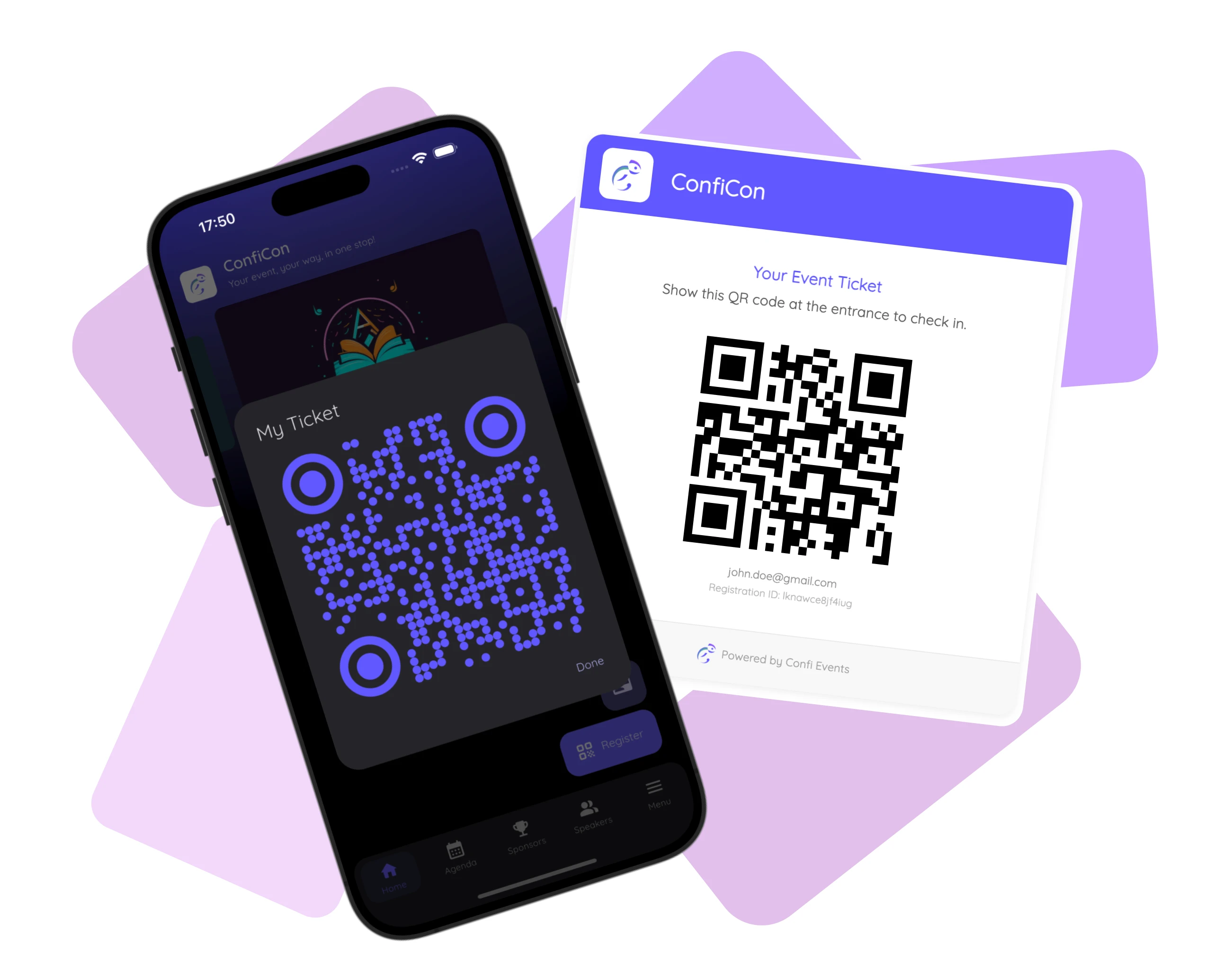
Under My Ticketin the app menu, a large QR code is displayed on a white card, ready to scan directly from the screen. Attendees don't need to search their inbox or worry about email load times at the door.
For attendees who don't use the app, the QR in their ticket email works identically. Your scanner cannot tell the difference between the two sources: both produce the same valid check-in result.
If no registration is linked to an attendee's app account, the My Ticket screen shows a message prompting them to contact the organizer. This is a reliable signal that the email address on their account differs from the one they used to register.
What to Do When Check-In Goes Wrong
Three situations come up at almost every event. Each has a fix that takes under 30 seconds.
“I can't find this person in the list.” Search by partial email rather than name. The email on their Confi account may differ from the one they used to register. If they genuinely are not in the list, use Add Participant to add them on the spot and check them in immediately.
“Their QR code won't scan.” Ask the attendee to turn up their screen brightness. If the scanner still struggles, type a few characters of their name into the search bar and check them in manually. The whole exchange takes under 10 seconds either way.
“It says they're already checked in, but they just arrived.” Open the detail sheet and check the check-in timestamp. If it shows a date from your setup or a test run, toggle the check-in off and back on to reset it to the current time. The red warning banner that appears on duplicate scans also shows the original timestamp, so you can confirm on the spot whether it was a real prior check-in or a test.
How to Set Up Check-In in Confi
Check-in setup takes under five minutes from the admin portal. Here is the full process.
Enable the Registration module for your event from the admin portal. This adds the Sign Ups, Ticketing, and Check-in tabs to your event dashboard.
Create a sign-up form and share the public URL with your attendees. They register from any browser. No app download required on their end.
Review incoming sign-ups in the Sign Ups tab. You can search, sort, and edit attendee details before the event day.
Send ticket emails from the Ticketing tab. Click Send Ticket Emails to send a personal QR code to every registered attendee in one batch. Use the Ticket Sent column to confirm delivery and resend individually if needed.
Check in attendees on the day from the admin portal on a laptop, or from the Confi app on your phone. Multiple staff can scan simultaneously from separate devices. Every check-in syncs in real time across all of them.
Once check-in wraps up and your attendees are settled in, the next step is capturing their experience while it is still fresh. An in-app event feedback form sent at event close consistently outperforms follow-up emails sent the next day, because it meets attendees in the app they have already been using all day.
Frequently Asked Questions
What is an event check-in app?
An event check-in app is a tool that lets event organizers record when registered attendees arrive, typically by scanning a QR code on their phone or ticket, or by searching a guest list and tapping a name. It replaces paper lists and spreadsheets, gives a live headcount, and lets multiple staff check in attendees simultaneously from different devices.
How does QR code check-in work for events?
The organizer sends each registered attendee a unique QR code by email. At the door, a staff member scans it with their phone or tablet, and the app looks up the registration, marks the attendee as checked in, and shows a confirmation on screen. The exchange takes under five seconds. If an attendee does not have their QR handy, staff can search by name and check them in manually.
Do attendees need to download an app to check in?
Attendees do not need to download any app to check in at a Confi event. Attendees can show the QR code from their ticket email, which the organizer scanner reads identically to the in-app version. Attendees who do download the Confi app have the QR available under My Ticket for added convenience.
What happens if an attendee loses their QR ticket?
If an attendee cannot find their QR ticket, the event organizer can search the check-in list by partial name or email and check them in manually, which takes about five seconds. If the attendee is not in the list at all, the organizer can add them on the spot using the Add Participant function and check them in immediately.
Can multiple staff check in attendees at the same time?
Yes, multiple devices can run Confi check-in simultaneously from separate phones, tablets, or laptops. Each check-in syncs to the event in real time, so there are no duplicate records or conflicting states between devices. Multiple staff scanning at separate entrances is standard practice for larger events.
How do I use check-in data to plan event staffing?
Confi's Check-In Distribution panel shows the peak 10-minute arrival window, the busiest day for multi-day events, and average check-ins per day. After your event, use the peak window to set scanner staffing for next time: if 70 people arrived between 09:10 and 09:20, schedule your full check-in team to be in position by 08:50. One scanner can process roughly 12 people per minute at five seconds per scan, so divide your peak window count by 12 to get the minimum number of scanners you need.
Ready to run check-in without the queue?
See Confi in action
© 2025. All rights reserved