How to Run a Conference Q&A Session (Without the Awkward Silence)
From attendee question submission to the big-screen answered queue
May 17, 2026
By The Confi Team
The Q&A at the end of most conference sessions follows the same script: the speaker says "any questions?", a few seconds of silence pass, and then the same three people who always ask questions raise their hands. The other hundred attendees in the room have questions too — they just won't ask them out loud.
App-based Q&A breaks that pattern. Here's how the format works, how to set it up in Confi, and how to run it so the whole audience actually participates.
What Is a Conference Q&A Session?
Conference Q&A session: a structured question-and-answer segment at the end of a conference presentation or panel, where attendees submit questions and speakers respond. App-based Q&A replaces hand-raising with mobile submission, upvoting, and a moderated queue visible to both presenters and the audience.
The format is familiar: a speaker presents for 30 to 45 minutes, then opens the floor to questions for the final 10 to 20 minutes. What changes with a conference app is how those questions are collected — and who ends up asking them.
Research consistently shows the demand is there: 92% of event attendees say a live Q&A is a must-have, and 67% report being more engaged at events that offer it. The challenge has never been interest — it has been the barrier to participation.
How App-Based Q&A Changes the Dynamic
Standing up at a microphone in front of a room full of peers is not something most people are willing to do. Typing a question into an app is.
Anonymous submission removes the social risk entirely. At corporate events, junior attendees can ask questions they would never raise in front of leadership. At academic conferences, researchers can challenge a methodology without the discomfort of doing it publicly. The result is a question pool that actually reflects what the room wants to know, not just what the confident few are willing to ask aloud.
Upvoting solves the moderation problem. When attendees can upvote questions they also want answered, the most relevant questions rise to the top without the moderator having to decide what matters. The audience curates the session themselves.
Written questions also tend to be better questions. There are no rambling preambles dressed as queries, no five-minute speeches ending in "so my question is...". Attendees can submit questions before the Q&A window opens — while the talk is still happening — which means the best questions are ready before the moderator has even asked for them.
Where Q&A Lives in Confi
The Q&A feature in Confi is not limited to sessions. The same module runs across three different contexts in the app, each with its own use case.
Session Q&A
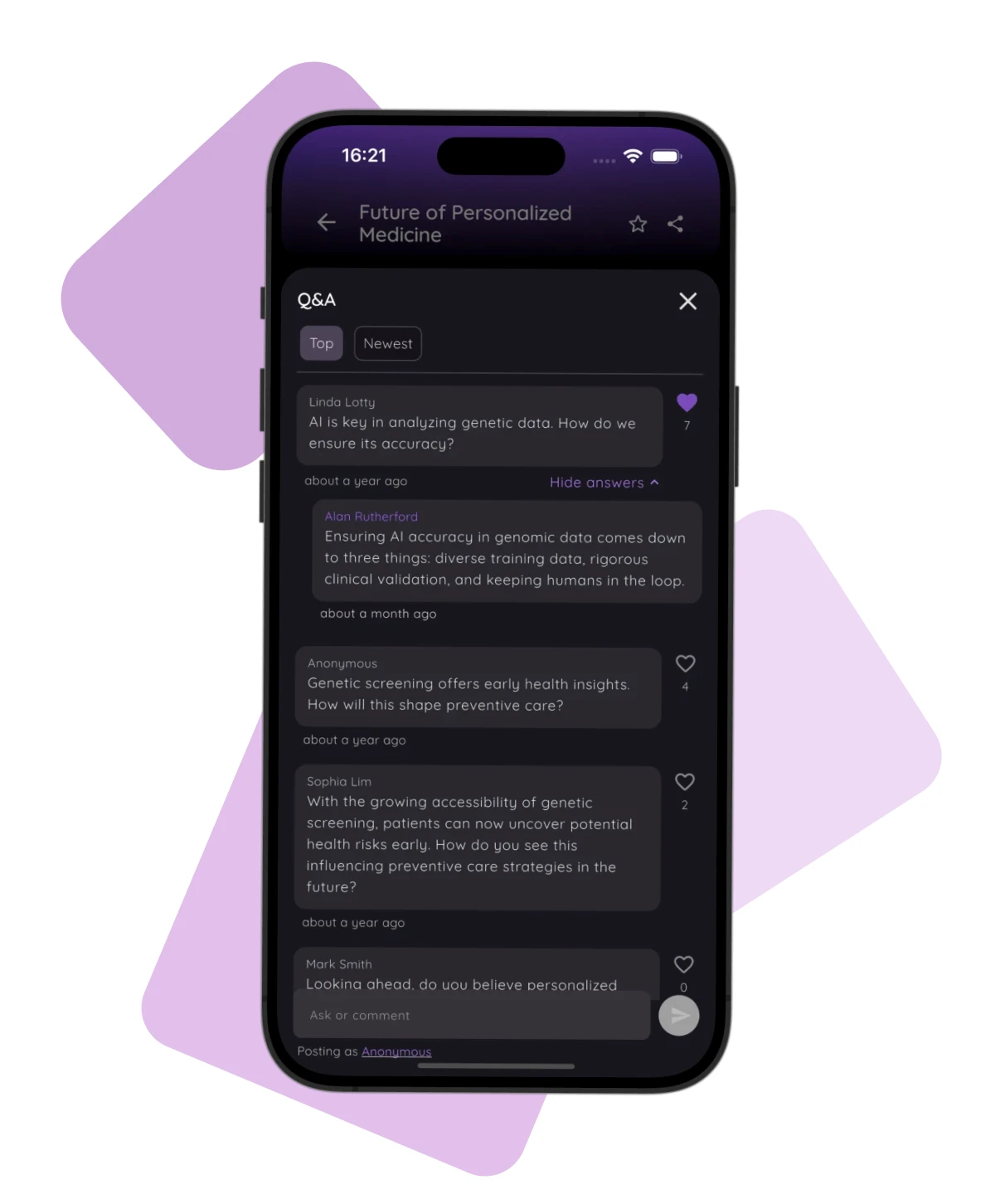
Each session in the conference agenda can have its own Q&A. Attendees open the session page in the app during the talk, tap the Q&A preview card, and submit questions or upvote others without leaving their seat. The preview card shows the live question count and the top-upvoted question at a glance.
Poster Q&A
Every poster in the conference poster directory can have its own Q&A. Attendees leave questions on a poster page at any time — before the physical poster session, during it, or after — and authors answer when convenient. This turns a two-hour floor session into an ongoing conversation that continues well after the event ends.
Custom Screen Q&A
The Q&A module can also be embedded on any custom screen in the app — a general discussion page, a panel preparation screen, a workshop feedback board, or any other content page you build. If a conversation needs to happen somewhere in your event, you can put a Q&A there.
What Attendees See and Do
Attendees access Q&A without any separate login or link. They open the session page they are already on, tap the Q&A card, and the full panel opens as a bottom sheet over the session content.
Inside the Q&A panel, they can submit a new question — choosing to post it under their registered name or anonymously — or upvote questions already in the queue. The panel defaults to Top order, showing the most-upvoted questions first, but attendees can switch to Newest to see what just came in.
If a speaker or organizer has answered a question, the answer appears nested beneath it and is expandable inline. Attendees see the full thread without leaving the Q&A panel.
The Organizer Overview — the Big-Screen Q&A View
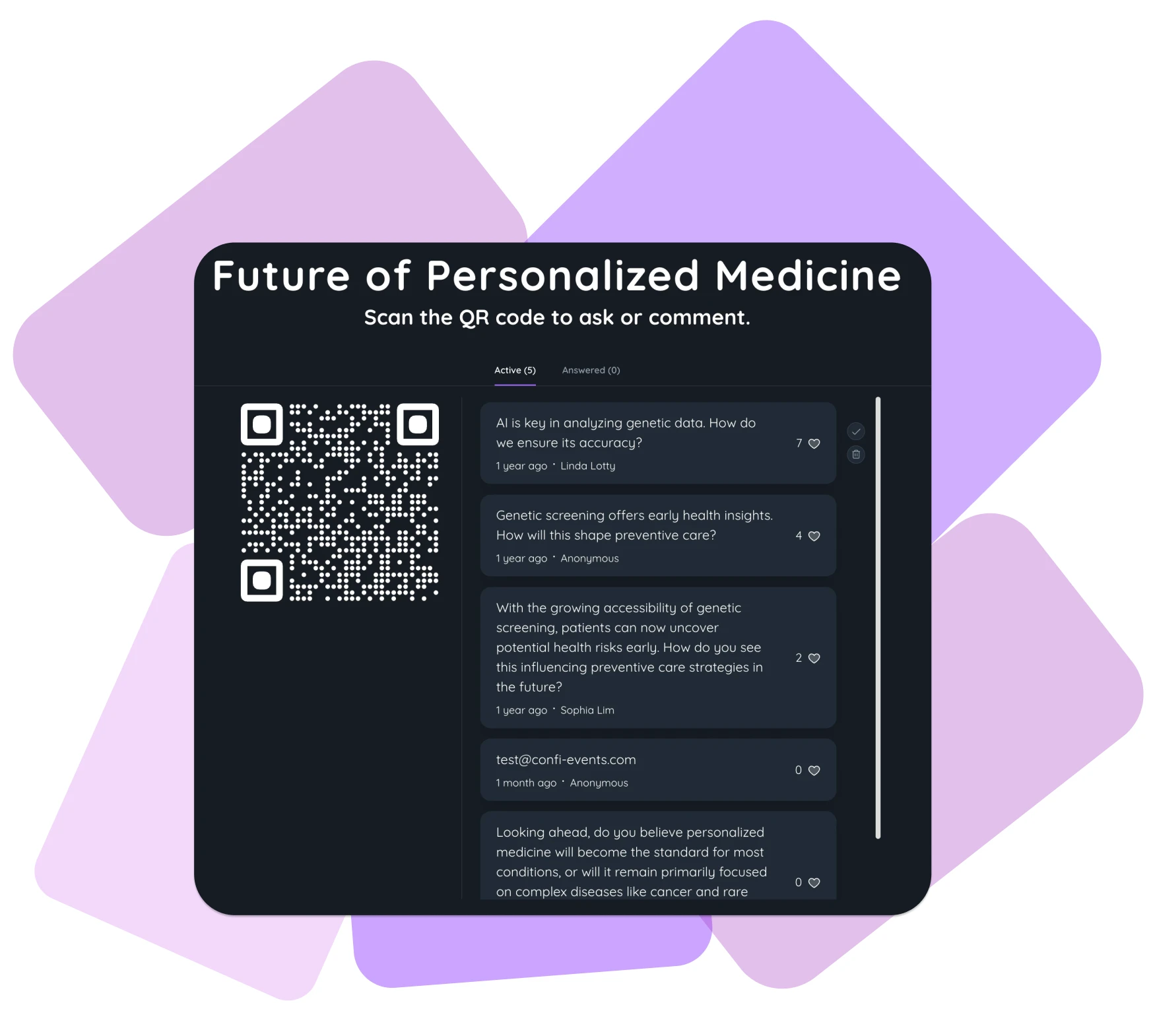
The admin portal includes a dedicated full-screen Q&A view designed to run on a second monitor, laptop, or tablet during the session. It is the organizer's control room for the question queue.
The left side of the screen shows a large QR code that deep-links directly to the Q&A for that session. Display it on the projector alongside your slides and attendees can scan and start submitting from their seats immediately — no URL to type, no app navigation required.
The right side shows the live question queue, updated every two seconds. Each question displays the text, the author (or "Anonymous"), the timestamp, and the upvote count. Two tabs manage the workflow:
Active — unanswered questions, sorted by upvotes. This is what you work through during the session.
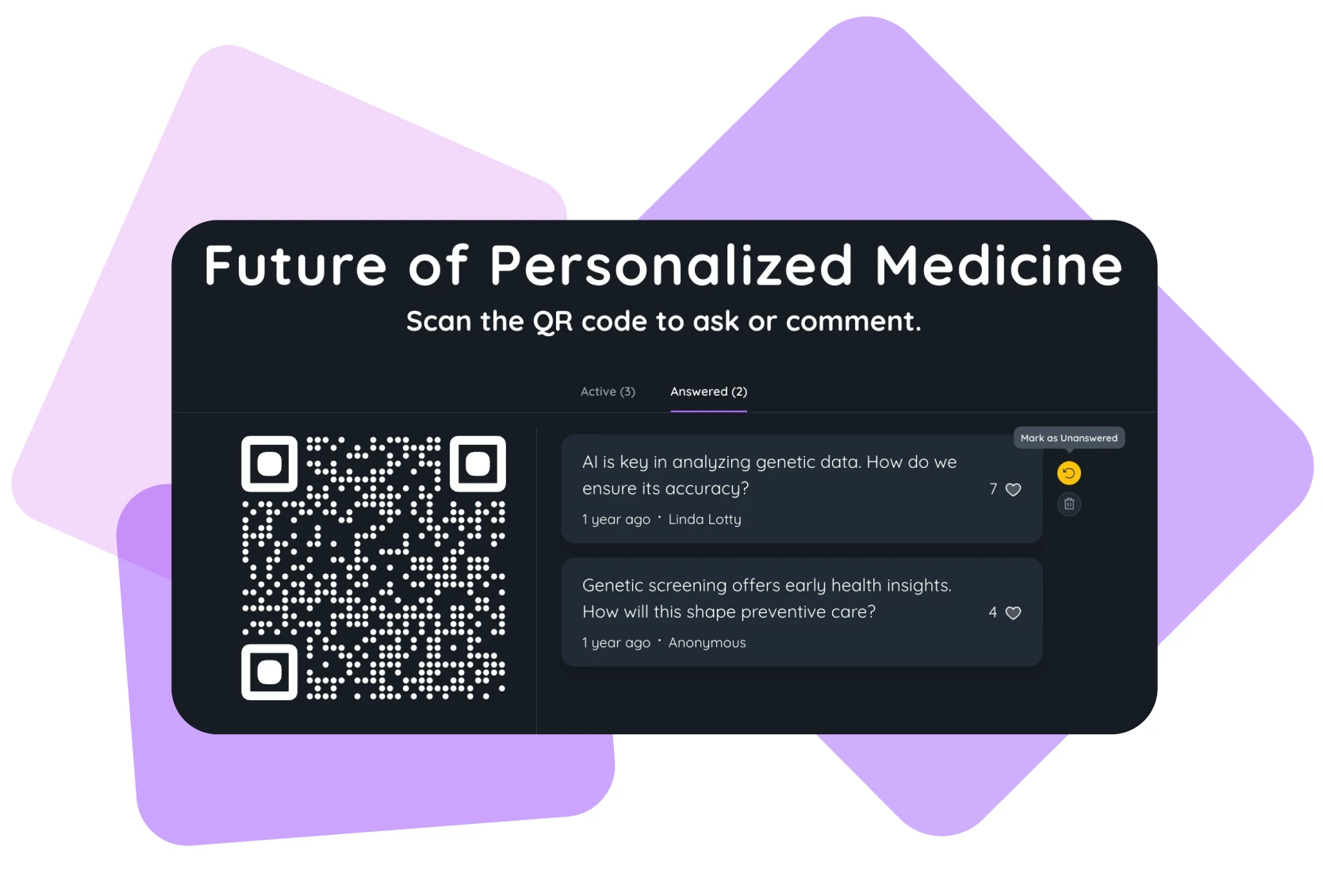
Answered — questions you have already addressed. Click the green check on any active question to move it here. Click undo to move it back if the discussion continues.
A delete button next to each question lets you remove anything off-topic or inappropriate before it reaches the top of the queue. When the Active tab is empty, only the QR code displays — a clean presenter mode with no distractions.
Six Tips for Running a Great Conference Q&A Session
The format takes care of participation — these habits take care of the quality.
Show the QR code on your opening slide, not just the closing one. Attendees compose better questions while listening to the talk. If they can only submit after the presentation ends, the best questions never get asked.
Open the Q&A window while answering the last question. Overlapping the end of the presentation with the start of formal Q&A prevents dead air and keeps momentum going.
Call on the highest-upvoted question first. The audience already voted on it. You are not picking favourites — you are honouring the consensus of the room.
Enable anonymous mode at sensitive sessions. Corporate strategy reviews, compliance discussions, and 360-degree feedback sessions get significantly better questions when people know they cannot be identified.
Keep a pending question visible on screen while speaking. It signals to the room that more answers are coming and stops people from mentally checking out once their question has been submitted.
Check the Answered tab at the two-minute mark. It confirms you have covered everything before closing and gives you a clean record of what was discussed.
Setting Up Q&A in Confi
Q&A is enabled per session, per poster, or per custom screen — so you can roll it out for specific parts of your event without turning it on everywhere.
For sessions: open the Agenda section in the Confi admin portal, select a session, and enable the Q&A toggle. The same session page can also carry an in-app feedback form — Q&A for live questions during the talk, and a feedback form for structured ratings afterwards.
For posters: open the Posters section, select a poster, and enable the Q&A toggle. Poster authors automatically receive reply permissions — they can answer questions directly from their own app without any separate admin access.
For custom screens: add a Comments module when building or editing the screen. The Q&A module is one of several block types available in the custom screen editor, alongside text, images, files, and forms.
During the session, open the Q&A Overview from the event dashboard on a second screen or dedicated device. The overview is accessible from any browser — you do not need to install anything extra to run the big-screen view.
Frequently Asked Questions
How do you get people to ask questions at a conference?
Lower the social barrier. Most attendees stay silent not because they lack questions, but because asking one publicly feels risky — especially at professional or academic conferences. An event Q&A app lets attendees submit questions anonymously from their phone during the talk, before the formal Q&A window even opens. By the time the speaker says "any questions?", the queue already has ten submissions ranked by upvotes. The loudest voice in the room no longer determines what gets asked.
What should a conference Q&A moderator do?
A Q&A moderator using an event app manages the queue rather than the room. Call on the highest-upvoted question first — the audience already voted on it, so you are following their lead rather than picking favourites. Mark each question as answered once addressed so the queue stays clean and you can see at a glance what is still pending. Delete off-topic or disruptive questions before they derail the session. Keep a partially-answered question visible on screen while speaking to signal that more responses are coming.
How long should a Q&A session be at a conference?
A conference Q&A session should run 15 to 20 minutes for a 45-minute talk. With app-based Q&A, attendees submit questions during the presentation rather than scrambling to formulate one at the end, so the queue builds naturally and 15 minutes is usually enough to cover the top five or six questions. For shorter talks, ten minutes is sufficient. Reserve more time for panel discussions where multiple speakers are fielding questions simultaneously.
Can conference Q&A be anonymous?
Yes — in Confi, each attendee chooses whether to submit with their registered name or anonymously, per question. Anonymous submission is especially valuable at corporate events where seniority might otherwise silence junior attendees, and at academic conferences where challenging a speaker's methodology can feel socially risky. Organisers and speakers see "Anonymous" in place of a name; they cannot unmask who asked.
How do you handle difficult questions at a conference Q&A?
The upvoting system legitimises difficult questions — if thirty attendees upvoted it, it deserves an answer and skipping it visibly will erode trust. For genuinely off-topic or inappropriate questions, the organiser can delete them from the admin overview before they appear at the top of the queue. For challenging but legitimate questions, the written format gives the speaker a moment to read and frame a considered response rather than reacting on the spot to a verbal ambush.
Ready to run Q&A your whole audience participates in?
Get in touch
© 2025. All rights reserved